Illustrator: Rid Yourself of Pesky “Expand Appearance” Woes

In the spirit of April Fools day, I wrote a tutorial on something I once considered “tricky.” If you’ve ever run into problems while trying to “Expand Appearance” on your brushes in Illustrator, you’re not alone. Expanding the appearance of your brush work has many helpful uses because you can get paths that outline your shapes, instead of just the brush stroke itself. This helps preserve the shape of your brush work when scaling and allows you to send files to print with outlined paths that prevents problems when the printers open your files, among other things. Let’s get started.

Illustrator: Rid Yourself of Pesky

1. Open a new Illustrator document, and create some overlapping shapes using a brush or two.

(For those of you wondering, I haven’t released the brushes you see here yet, but I will very soon. If you would like to use some similar brushes to follow along you can download a similar brush set here and here.)

You should now have something like this:

Illustrator: Rid Yourself of Pesky

2. Go to Object > Expand Appearance to create your outlines.
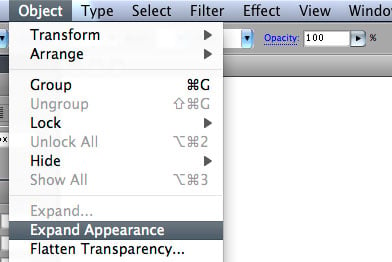
Illustrator: Rid Yourself of Pesky

You should see your outlines, as well as the left over brush strokes that we don’t need anymore.

Illustrator: Rid Yourself of Pesky

Now, if the reason for the next few steps isn’t clear, let me tell you why we don’t stop here. By the end of this tutorial, we will have a single path that outlines what was originally 3 brush strokes. In order to do that, we need to use the Pathfinder palette to combine the 3 shapes into 1. If you try it at this point, you’ll see something similar to this:

Illustrator: Rid Yourself of Pesky

That’s obviously not what we want. The key to getting it to work is to either select only the outlines (deselect the brush strokes), or just get rid of them all together. I like to just get rid of them, especially if you have a complex piece of work and deselecting them one by one would take forever.

3. With everything selected, right click and “Ungroup” them.
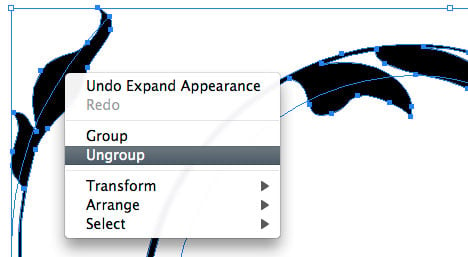
Illustrator: Rid Yourself of Pesky

4. Now with the Select tool (black arrow), select one of the outlines.

Illustrator: Rid Yourself of Pesky

5. Go to Select > Same > Fill Color.

This is a simple example, but in complex documents, this would be much faster than selecting them all by hand. Since the brush strokes don’t have a fill, you’ll be able to select everything else all at once. (assuming they’re all the same color)

Illustrator: Rid Yourself of Pesky

So you should now have everything except the left over brush strokes selected:
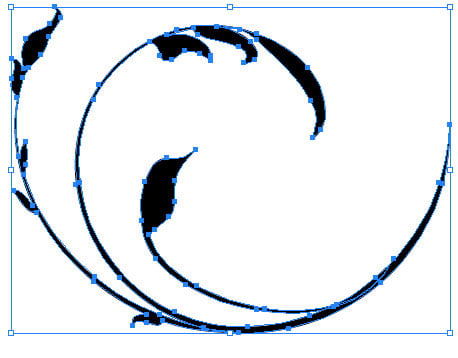
Illustrator: Rid Yourself of Pesky

6. With all of your fills selected, go to Select > Inverse.

This will select all of the left over brush strokes, making it easy to delete them.

Illustrator: Rid Yourself of Pesky

7. Delete the left over brush strokes.

Note: there are other ways to select the strokes, but this is just what I consider the easiest. Also note that this selection method only works when you “Ungroup everything after “Expanding Appearance.”

8. Select all (Command/Control + A) and you should see only your fills remain. Now we can combine the shapes without all the mess.

Illustrator: Rid Yourself of Pesky

9. Open the Pathfinder palette (Window > Pathfinder) and with all your fills still selected, hit the “Add to Shape” button, then “Expand, ” in that order. (see below)
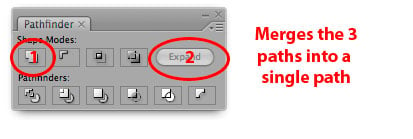
Illustrator: Rid Yourself of Pesky

Done! You should now have a single path created from 3 Illustrator brush strokes, as you see below.

I like combining my paths because it not only simplifies the mess, but it cuts down on file size and makes scaling a breeze. If you’ve ever scaled brush strokes in Illustrator it can get frustrating fast, depending on what kind of brush it is, wether or not the brush is set to “proportional, ” and wether or not you have “Scale Strokes and Effects” on or off. However, if you do start outlining your artwork, it’s probably a good idea to keep a copy of the original brush strokes somewhere, incase you want to go back in and adjust a stroke size before you outline it.

Illustrator: Rid Yourself of Pesky

This entry was posted on Tuesday, April 1st, 2008 at 9:38 am and is filed under Illustrator. You can follow any responses to this entry through the RSS 2.0 feed. You can leave a response, or trackback from your own site.
Stumble It
Add to Del.icio.us

34 Responses to “Illustrator: Rid Yourself of Pesky “Expand Appearance” Woes”

  1. thank you for another excellent and helpful tutorial! I’ve been reading your blog for only a short while now, and I’m still overwhelmed at the wealth of information you give to your readers. What I’m curious about is, do your illustrator tutorials translate to freehand mx? For instance, can I make custom brushes in freehand? I’d love to try my hand at making some cool swirly vectors like the ones you make, but I don’t have access to illustrator at home, only freehand mx.

  2. Actually there is a easier way.. in you layers panel there should be two paths and if you delete one of them – boom you got the shape you have in the final example. The extra path comes right after you have expanded a given object.

  3. Thanks for another great tutorial. I’ve been so frustrated for a long time trying to come up with an effective system of getting rid of those irritating brush strokes that are left over when I use the expand appearance feature.

    Thank you,
    Toby

  4. Great Stuff!
    After you do “Expand Appearance”, you can also leave everything selected and goto “Object > Path > Clean up” and it will delete all the empty paths.

    I setup a hotkeyed action to expand appearance and cleanup automatically and use it all the time!

  5. oh Thank you Scott, thats even better than mine suggestion :-) Thank you

  6. This is good, another trick that works well when you have other art on the board instead of ’select inverse’ and delete is to draw an object with no fill and no stroke, and then do a ’select same fill color’ and delete.

  7. Thanks Scott!

  8. the “select” “same” option is one of my favs.

  9. Herrimanjoe

    I’ve got just a small tip to add to this. If you hold down option while you click the “add to shape” tool in the pathfinder palette, it automatically expands the object for you, saving you a click.

  10. Great tutorial. Thanks for sharing this.

  11. Nice one! Ran into this a few times…

  12. Bitt, you are a rad person in a world where people tend to keep this kind of information to themselves!
    I knew about expanding my brushstrokes, but Scott’s suggestion to use “clean up” was new to me.

    I love the community you’re fostering here!

  13. you might like to use a simple script that is available to download from grafix website , this will you just go to file > scripts and close all paths .
    Or select > open paths and with one click you can delete all unwanted lines. The script can be found at
    http://www.aivault.com/?p=129

  14. Hey,
    I’ve just read this tutorial and I highly recommend the “merge” tool under “Pathfinder”. It eliminates the need to go through all the other steps.

    a

  15. I love this blog so much! I learn as much from the comments as from Bitt (Thanks to everyone, and Bitt)
    Andy’s right… you still have to expand appearance first, but merge gets rid of the empties and combines your shapes in 1 step! Thanks Andy.

  16. Hi Bitt,

    this was so handy!

    On another note is it just me or has your page looked a little broken for the past 2 days? the right column is now at the bottom and looks a little wrong.

    great blog all the same!

  17. great! just great!

  18. muchas gracias necesitaba aprender esto

  19. Very nice! Thanks!

  20. Oh, the merge tool did work though.

    Thanks Andy.

  21. Thanks, I found this helpful, and also everyones elses tips in the comments. Amazing how many different ways of doing it there are – adobe software just rocks!
    http://melsbrushes.wordpress.com

  22. Bitt, this tutorial has helped me out the most in what I am doing. Solid work! Thank you for the website and priceless tips.

    Vic

  23. [...] Illustrator: Rid Yourself of Pesky “Expand Appearance” Woes [...]

  24. Kristin Puls

    I read this post when you first wrote it, but didn’t have anything to apply it to. Well, tonight I’ve been working on this concert logo that is a silhouette of a girl with crazy wavy hair … and I was ready to put my foot through this very expensive monitor of mine! Thankfully, I trusted in Bittbox and checked the archives. Voila! Insanity relieved. Your blog is better than Prozac.

    Heart.

  25. Ben Lindsey

    You can do this same thing with Flatten Transparency but here are couple tips to help this process go even faster.

    Instead of using steps 6-9 here, hold down option while you click the Add to Shape Area button in your pathfinder. That will expand your selection into one path as you click the button so you don’t need to hit expand afterwards.

    Hide the selection using cmnd + 3.

    Once hidden, you can select all to find the empty paths and delete those.

    Unhide your selection using cmnd + option + 3 and you’re done.

    Hope this helps shave a couple seconds off your final time!

    PS: The merge feature in the pathfinder will still leave you with strokes around your graphic which will defeat the purpose of this tutorial.

  26. Thanks for that tip, being a graphic design student i found this very helpful!
    Thanks again.

  27. Oh you are a mind-saver! Thanks for explaining that ridiculous expand appearance in such detail. It was driving me crazy when nothing happened. lol

  28. Thank bitt! JUST what i needed

  29. great tip!

  30. desert_flower

    thanx ^_^

  31. Hi,

    Scanned through this article and found it very helpful as I am not an illustrator bod but needed to use these techniques to output for vinyl. Many thanks.

    This was the missing link after the below technique:

    Use this technique after you have created an “Object> Compound path > Make” to remove any applied effects to your shapes such as 3D effect etc.

    If you don’t do the above technique then I think it will revert your new shape back to a pre-applied effect state i.e before the 3d effect was applied.

    Great article though and saved me lots of time :-)

  32. I design ‘cutting files’ for electronic cutting machines and this is invaluable. Thank you, so much for sharing your knowledge. :o)

  33. Good advice. I was trying to do this over and over but didn’t realize I needed to ungroup first for it to work.

    After experimenting further, I found that steps 3 – 8 are not needed. In CS3 and later, after ungrouping, you can go straight to the Add button in the Pathfinder. It adds the shapes together and gets rid of the strokes.

  34. ?????????????????????????

LEAVE A COMMENT


Message: