
Photoshop: How To Make An Awesome Grungy Paper Texture From Scratch

This page may contain links from our sponsors. Here’s how we make money.
Many of you might remember my Free High-Res Grungy Paper Textures I gave away a while back. I had a lot of requests for a tutorial on how I actually made those textures, so I here we are.
Fire up good ‘ol Photoshop, have a scanner handy, and let's dive in. Ready-made grungy paper textures are easily available these days but one should learn to design it from scratch as part of the process. We will not create it from absolute scratch but modify the existing one captured from the grungy piece of paper.
During the process, you will learn additional tactics such as adding new layers, modifying original layers, adding the scanned images to Photoshop, adding texture properly and other similar tactics. Grunge refers to the dark and dusty just as the paper textures below. Grunge paper textures are now more common as they add drastically amazing dark effect to the picture. In this tutorial, you will learn to introduce massively high-definition effects using some simple settings and optimizations. You will learn to make the best use of texturizer and rotate the canvas.
Creating a Grunge Paper Texture in Photoshop
This tutorial is divided into 7 simple and easy steps:
- Scan
- Add texture
- Add new layer
- Erase
- Repeat
- Repeat again
- Add some details

Step 1: Scan
Get a natural-brown-colored piece of paper (or brown paper bag), give it a good crinkle, then flatten it back out and scan it in. After you scan, take your image into Photoshop, where we'll be the rest of the tutorial. After you get your image into Photoshop, you should have something similar to below.
If you don't have a scanner click here to download the image I'm using from Flickr if you'd still like to follow along.

Step 2: Add Texture
First, we're going to add a little texture to the paper itself. With your image layer selected, go to Filter > Texture > Texturizer.

Select “Canvas” from the drop down menu, set the scale to around 100, and the depth between 2 and 4, then Click OK.

You should now see something like below: (full size close-up)

Now we have a canvas-like texture, but it only goes in one direction. I like to get the grain going both horizontally as well as vertical, so go to Image > Rotate Canvas > 90° CW to rotate your image.

Now that your image is on it's side, we're going to apply the texture again, this will give us the grain going in both directions. So go back to Filter > Texture > Texturizer, and apply the same filter again, or just key Command + F (Control + F, PC) to repeat the filter.

Now that we have our texture in both directions, let's rotate our canvas back so it's vertical again Image > Rotate Canvas > 90° CCW. (Or you can leave it horizontal if you need to, doesn't matter.)

Step 3: New Layer
Now it's time to start grunging it up. Make a new layer on top of your paper texture, and fill (Edit > Fill) it with a color: (hex) #451300. Here's an image you can download if you'd like to just use the eyedropper tool:

After you fill your layer, take it's opacity to around 70%

You should be able to see your paper texture peeking through.

Now change the layer mode to “Soft Light.”

When you change the layer mode, it will lighten up quite a bit, but will be noticeably darker than the original texture below:

Step 4: Erase
We're going to use a high resolution brush to ‘erase' parts of our new layer and leave the corners a little grungy. For this, I like to use my Hi Res Splatter Brushes.
After you get these brushes installed, select the Eraser tool, then select one of the brushes in the High Res Splatter set as your tip shape.

In the Photoshop Toolbar (top left), set the Opacity of your Eraser to 70%, and the Flow to 60%

Now, with the splatter brush tip eraser, start chipping away (erasing) at your top layer, leaving the corners looking ‘stained' or dirty. Concentrate on the middle section while erasing. (more advanced users should erase the layer mask for a non-destructive way to get the same results)

And you should end up with something like this:

Step 5: Repeat
That's a start, but we need it to get quite a bit grungier before we call it quits. Make a new Layer (on top) and fill it with the color below. (hex) #371C11. Set the layer opacity to 90%, and the layer mode to Multiply.

After you do all this, repeat the last part of Step 4. Use the eraser, and a High Res Splatter brush tip to erase until you get something like this:
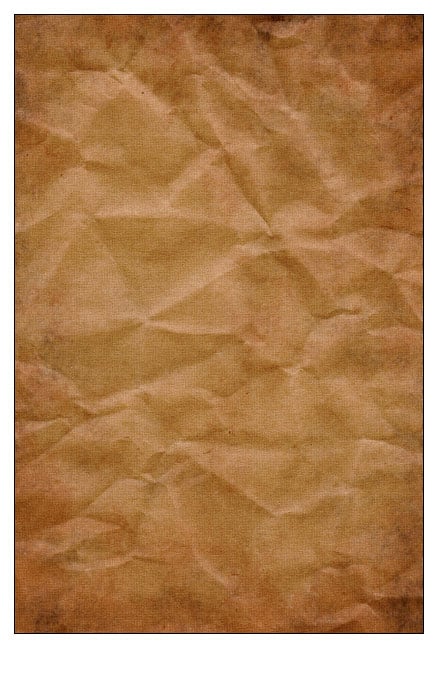
Step 6: Repeat Again
That's a step closer, but we're not done yet. Make another new Layer (on top) and fill it with the blue color below. (hex) #0078A4. Set the layer opacity to 65%, and the layer mode to Soft Light.
The only thing we're going to do different this time is change the Opacity and Flow of the Eraser tool to 30%

After you do all this, repeat the last part of Step 4. Use the eraser, and a High Res Splatter brush tip to erase until you get something like this: (You might notice how tha blue layer makes the other 2 layers quite a bit darker. It's subtle, but noticeable)

Step 7: Add Some Details
If you want to add a little extra to your grungy paper, you can always spice things up with some cool Photoshop brushes. Download some Floral Ornament Brushes and SS-Handwriting brush sets and install/load them. You have to work on even the smallest details so that it can produce significant different to your project design when applied.
Create a new layer for your brushes, set the layer mode to Multiply, layer opacity to about 50%, and select one of the Floral Ornament brushes. Set the foreground color to (Hex) #A43A00.

This part is really up to you but I just put a floral ornament in the bottom left corner, and the top right. Here's a close-up:

Now lets add some old-fashioned handwriting, shall we. Make a new layer, set the layer mode to Multiply, layer opacity to about 48%, and set the foreground color to (Hex) #5E4316. Now Load the SS-Handwriting brushes and select a brush to use.

I just put a little handwriting in a couple different places. Here's another close-up:

Done!
Here's the final result folks! I hope you enjoyed the tutorial.
