How to Sync Photoshop Presets on Multiple Computers

If you have multiple computers, and you use both of them quite frequently (like myself), then you understand that syncing 2 computers is a never-ending battle. Syncing files is hard enough, but I want to share a workflow tip with everyone that will make your lives easier when switching back-and-forth between machines. I want to show you how to sync all your Photoshop Presets (Brushes, Actions, etc.) on multiple computers. This will speed up your design workflow, and increase productivity. For example, you download and install a new set of brushes in Photoshop on your laptop, then you get home, and the new brushes have already been downloaded and installed on your desktop. (Note: you can do this for Illustrator, InDesign, etc. I’m just using PS as an example.)

How to Sync Photoshop Presets on Multiple Computers

1. First, you need some kind of “Syncing” service.

I use MobileMe, but there are plenty of options out there for PC users to sync fies between computers. Once you have that, upload your ~Applications/Adobe Photoshop CSX/Presets folder to your file syning service.

How to Sync Photoshop Presets on Multiple Computers

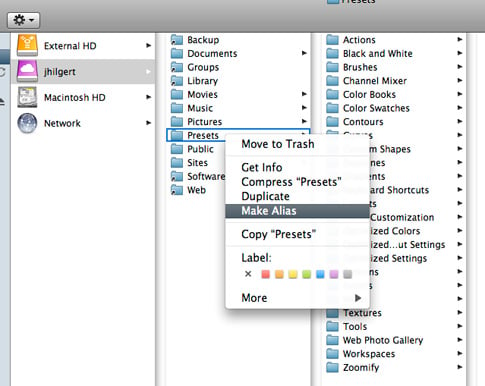
2. Create an Alias to Your Presets

I believe, for PC users, the correct term is “Shortcut,” so simply create an Alias or Shortcut to your newly uploaded “Presets” folder.
How to Sync Photoshop Presets on Multiple Computers

3. Replace your “Presets” folder/s with the Alias

On both of your machines, either move or delete the existing ~Applications/Adobe Photoshop CSX/Presets folders and replace them with the alias, or shortcut you created.

How to Sync Photoshop Presets on Multiple Computers

4. Done!

Now, all you have to do is wait for everything to sync, and your all set. Now that you’ve set this up, if you make changes to your Presets (add or delete Brushes, create new actions, etc.) the changes will be identical on both your machines. No more leaving a Photoshop brush set on a home computer and no more downloading everything twice :) (just to give a couple examples)

How to Sync Photoshop Presets on Multiple Computers

This entry was posted on Friday, July 31st, 2009 at 7:02 pm and is filed under Photoshop. You can follow any responses to this entry through the RSS 2.0 feed. You can leave a response, or trackback from your own site.
Stumble It
Add to Del.icio.us

32 Responses to “How to Sync Photoshop Presets on Multiple Computers”

  1. Wow I’ve been trying to find out how to do this for a while. I used the same method to sync my plugins with the DropBox application. Thanks BittBox!!!!

  2. ~Applications/Adobe Photoshop CSX/Presets points to the program default presets. The user generated presets are located in your user library: ~Library/Application Support/Adobe/Adobe Photoshop CS4/Presets

    Cheers, Gerrit

  3. I can tell you, that this is not working under Windows.

    I believe Windows treats “shortcuts” always like files. So a shortcut to a folder is actually a file (.ink) containing information about the target.

    Nevertheless, I tried it. But firstly, under Windows the Preset folder is under “%appdata%/Adobe/{e.g. Adobe Photoshop CS4}/Presets”. If I move this folder to a different place and create a shortcut, Photoshop will create a new Presets folder right next to the shortcut :)

    But there is a possibility to get this working the Mac-way. Since Win2000, “Junctions” are possible. There is some kind of add-on for that, available at the Microsoft Web sites – but just a command line tool. There is also a small tool, which enables this via the context menu in Windows Explorer (but don’t ask me for the name ;) ). Google should know about this :) (one could try the keywords Junction and Hardlink).

  4. Awesome, I needed to do this badly and never did. Now I get no more excuses :)

  5. I believe when I originally tried this on OS X using aliases and DropBox, it wouldn’t work. But using symbolic links works perfectly :)

  6. [...] posted a technique for syncing Adobe Photoshop presets on multiple computers. This technique should work for Adobe [...]

  7. [...] How to Sync Photoshop Presets on Multiple Computers | BittBox [...]

  8. Oscar, at least on Leopard aliases do work. :)

  9. [...] How to Sync Photoshop Presets on Multiple Computers | BittBox [...]

  10. Simply making a shortcut in Windows won’t work, as far as I know.

    mklink /D /J link_name target_directory

    That command should do the trick, it’s installed in Vista by default, and I think it’s also installed in 2000 and XP.

  11. [...] How to Sync Photoshop Presets on Multiple Computers [...]

  12. [...] How to Sync Photoshop Presets on Multiple Computers | BittBox [...]

  13. Great info. This is something I never thought about, will try and see if it works.

  14. [...] Bittbox Entradas relacionadasLanguage Switcher: ejecuta cualquier aplicación en diferentes idiomasNueva [...]

  15. Thanks for the idea!! I use Live Mesh on the PC (Vista). Instructions…

    1. I went to the following folder C:\Users\\AppData\Roaming\Adobe\Adobe Photoshop CS4
    2. Right-click and select “Add Folder to Live mesh…”

    Done!

  16. Thanks for the tips. This will come in handy when I upgrades to Panther and Adobe Cs4.

  17. [...] that has the default configuration can be frustrating. Fortunately Bittbox have found a way to sync Photoshop settings between multiple computers. Very handy if you’re using different computers at home and at [...]

  18. Gee, reading the comments makes me desperately wanted to have a Mac, unfortunately it’s still expensive for me, here in Indonesia. Gotta tell you, I’m confused with Brian way of explaining how does this also almost-possible at Windows.

  19. @Sakti. This is possible on Windows. I use Windows Vista and new Microsoft service called Live Mesh (www.mesh.com). To sync machines, it’s as simple as right-clicking on the folder and selecting “Add to Mesh…” Mesh will need to be installed on both machines. Add each machine to your mesh and you are set.

  20. Gee, reading the comments makes me desperately wanted to have a Mac, unfortunately it’s still expensive for me, here in Indonesia. Gotta tell you, I’m confused with Brian way of explaining how does this also almost-possible at Windows.

  21. [...] How to Sync Photoshop Presets on Multiple Computers | BittBox [...]

  22. [...] How to Sync Photoshop Presets on Multiple Computers “If you have multiple computers, and you use both of them quite frequently (like myself), then you understand that syncing 2 computers is a never-ending battle.” [...]

  23. [...] How to Sync Photoshop Presets on Multiple Computers | BittBox [...]

  24. [...] How to Sync Photoshop Presets on Multiple Computers | BittBox [...]

  25. Great article! With more and more people having multiple computers this is such a must have!

    We use Windows Live FolderShare (Windows/Mac) to sync. We have had problems in the past with Microsoft Live Mesh. Foldershare is free from http://www.foldershare.com

  26. Sherry Williams

    Can you do this on a Mac?

  27. [...] How to Sync Photoshop Presets on Multiple Computers “If you have multiple computers, and you use both of them quite frequently (like myself), then you understand that syncing 2 computers is a never-ending battle.” [...]

  28. [...] How to Sync Photoshop Presets on Multiple Computers “If you have multiple computers, and you use both of them quite frequently (like myself), then you understand that syncing 2 computers is a never-ending battle.” [...]

  29. Very nice. My wife asked me how to do this two weeks ago and I failed miserably.

    Our Affordable Alaska Web Design Company doesn’t teach us those tricks. Now I’ll go home and fix sync her monitors.

  30. [...] shows off How to Sync Photoshop Presets on Multiple Computers. [...]

  31. Sigh, another reason to hate proxy servers that can’t distinguish good from bad.

  32. [...] There is a way to sync Photoshop presets on multiple computers. [...]

LEAVE A COMMENT


Message: