
Convert Text to Vector in Photoshop in 1 Click (Vectorize Text)

This page may contain links from our sponsors. Here’s how we make money.
I love this Photoshop feature so much that I want to ensure you all know about it.
Convert Text to Vector in Adobe Photoshop
First, open a new Photoshop file, and use the text tool to type anything you want on the artboard.
Then Control + Click (right click) on that text layer in the layers palette, and select “Convert to Shape.” Your text will now be in vector shape format so that it may be used as a shape, and can be scaled to any size without losing quality. Just Like if you “create outlines” in Illustrator! 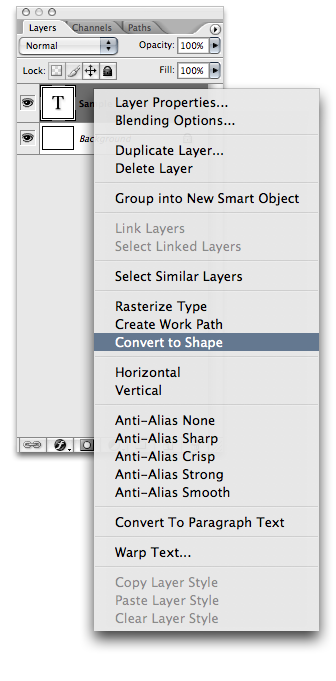
I find this especially useful when creating logos in Photoshop or sending a file without fonts. Of course, it's important to only do this if you know the text won't need to be edited or changed in the future. Once the layer is converted to a vector shape, it's no longer text. As a result, you can't change the text (for example, if there is a misspelling).
Vectorization
Vectorization involves changing a raster graphic into a vector. Adobe Photoshop supports this action that can edit and produce vector outlines from the text. Adobe software ensures that the vector shape created is perfectly scaleable to any resolution while maintaining sharpness and quality.
Converting your text into vector format allows you to work with it like you would work with any other vector shape or path. You can convert your text into three-dimensional vector form in a short time. You can convert the plain text form into a variety of different stylish and three-dimensional vector forms.
The text can be converted into a variety of different geometrical shapes, and this speeds up the process of designing a poster, advertisement, or something else. You can edit and customize the vector in terms of opacity and density, and you can get an advantage from a lot of other similar tools.
You can use different fonts and then convert them into vector forms. In addition to that, you can also completely transform the text and make additional changes like adding lighting effects to the text.
You can transform each and every small aspect of the text, including borders, stoke, shadow, inner glow, and other such aspects that can help you design a desired text shape and design. You can play with all these features and practice different customizations to achieve the best results on your own.
This feature saves a lot of time for professionals, and you can design text how you want to in a very short time. It is a simple and quick way to convert text into a 3D vector form. It's an interesting aspect of any text editor to vector it and is commonly used by graphic or poster designers in their projects.
Photoshop allows you to vectorize different aspects of a designing, including tet and other online shape forms.
