
[Ask BB] Saving Patterns in Illy, Pixelated Fonts, and more

This page may contain links from our sponsors. Here’s how we make money.
Here's round 2 of the Ask BB series. Some of these questions came in via email, and others via twitter (@bittbox), so If you have a question, let me know. When I get enough questions that I can answer, you might see your question here next time around 🙂 Thanks to everyone for sending in your questions. Let's get started.
![[Ask BB] Saving Patterns in Illy, Pixelated Fonts, and more](https://www.bittbox.com/wp-content/uploads/2009/02/ask.jpg "[Ask BB] Saving Patterns in Illy, Pixelated Fonts, and more")
1) Amy asks:
How do you save a pattern in Illy, so that you can use again and again in different Illy files? I know how to save a pattern for use in the file I created it in, but I'm looking to be able to pull up a palette of my created patterns in files other than the one the original pattern was created in.
Answer:
In your swatches palette, go to “Save Swatch Library as AI…”

Name your new library, and make sure to save it in your Illustrator CSX > Presets > Swatches folder.

Now, no matter what document you have open, you can load your custom (in this case pattern) swatches by going to Open Swatch Library, and choosing your file from the list.

2) dbslone asks:
How to create a dotted line along a path in either Illy or PS?
Answer:
I already have a tutorial on how to do this is Photoshop, so I'll show you an easy way to do it in Illustrator.
There is more than one way to do this, but I like to use a pattern brush. First, draw a circle on the artboard, and from the Brushes palette, select “New Brush.”
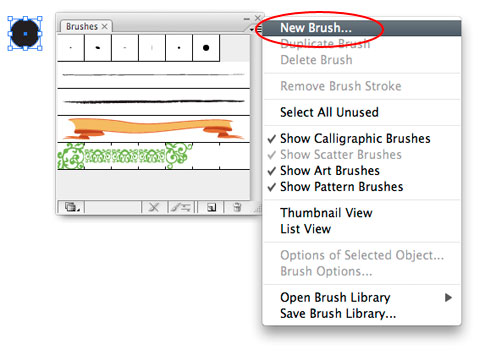
Select “New Pattern Brush” and hit OK.

You can always come back and change these settings later by double clicking on the brush from the Brushes palette, but for now the only 2 settings you need to worry about are spacing and colorization method. Set the spacing to 50% and the colorization method to “Tints.” (Tins is so you can change the color of the brush later if you need to.) Then click OK.

Now you can apply your new pattern brush to any path and get a nice dotted line. (You may need to adjust your stroke size, depending on how big of a dot you drew) Then you can go back in and adjust the spacing as needed.

3) Kaje asks:
I read your tip about pixelated brushes, but was wondering if there was a quick fix for pixelated fonts? Sometimes I will type in some text and the font, no matter what it is looks pixelated, so I have to go to the drop down and select “reset character”. Am I doing something wrong? It is quite annoying to have to reset each time this happens.
Answer:
I'm not 100% sure if this is your exact problem, but I'm quessing that your antialiasing setting is set to “None.”

To fix this, simply change your antialiasing setting in the Character palette to “Sharp” or “Crisp.” Then save your workspace by going to Window > Workspaces > Save Workspace. This way Photoshop will remember that you changed the setting and you won't have to change it manually every time.

Your type should now be nice and sharp.

4) malarts asks:
I've had a unique Illustrator problem lately…every now and then the “Send To Back” command stops working, under the Object >Arrange menu… Any idea as to why?
Answer:
Actually I have 2 ideas. Maybe one of them can help…
A) The “Send to Back” command only sends an object to the back of whatever layer it's on. So if you send an object to the back and it's not on the bottom layer, you're still gonna have stuff underneath it.

B) An object that's inside a “Group” only goes to the back of the group.

5) iheartrendering asks:
What is the “make it awesome” keyboard shortcut? I found it once, and it rocked my world. But now it seems to hide from me.
Answer:
Hmmm… not sure about that one one, but have you tried “Make My Logo Bigger Cream?” If you hurry, they'll throw in some “Whitespace Eliminator” for free.
