OS X Workflow: Batch Editing – Renaming a Long List of Files

I’m not sure if this will apply to everyone in the design world, but renaming a huge list of files can be a real pain, and I’ve found myself in need of batch editing countless times. It’s so much faster and easier to do a “Batch Rename” to save a ton of time, and a ton of clicks. OS X has a built-in utility called Automator that can do just that, among many other things. I’ll keep it simple for now, but depending on the reaction I get, maybe I can go into more detail about Automator in future posts.

OS X Workflow: Batch Editing - Renaming a Long List of Files

Overview:

Automator is an application that runs a series of customizable scripts called ‘actions.’ A series of ‘actions’ is called a ‘workflow.’ I created a Batch Rename Workflow for anyone who doesn’t feel like making their own. You can download it here. Just unzip, double-click, choose your settings and you’ll be batching in no time.

1. Download and Unzip

Download the workflow, unzip it then double-click and it will open in Automator. (Note: you may want to save it in Automator and choose one of Automator’s default locations, so you’ll be able to find it each time you launch Automator.)

2. Choose Your Settings

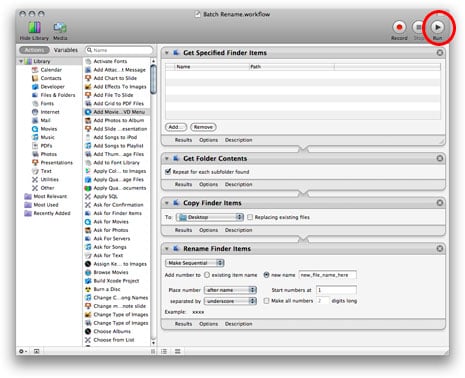
You should now have the workflow open inside the Automator Application. Now all you have to do is 1) add/choose the folder where all your files are located that need renaming, 2) Choose a location for the files after they are renamed, and 3) Choose a name for the new series of files. (There are lots of naming options: sequential, replace text, etc.)

OS X Workflow: Batch Editing - Renaming a Long List of Files

3. Run the Workflow

Once you have all of your setting in place, Click the “Run” button in the top right to execute the script and you’re done, Depending on how many files you just renamed, you probably save a few minutes at least. You might notice that this workflow makes a copy of each file before it renames them. This is so it leaves your original file intact, but If you simply want to rename without copying, just close the “Copy Finder Items” action inside the workflow.

OS X Workflow: Batch Editing - Renaming a Long List of Files

If you’re new to Automator but you’re curious you can browse the Apple Downloads Automator section for tons of free downloads including an awesome Set of Automator Actions for Photoshop. You can batch anything from image size to color mode, orientation, file type and more. You’d be surprised.

This entry was posted on Friday, July 18th, 2008 at 1:36 pm and is filed under OS X. You can follow any responses to this entry through the RSS 2.0 feed. You can leave a response, or trackback from your own site.
Stumble It
Add to Del.icio.us

25 Responses to “OS X Workflow: Batch Editing – Renaming a Long List of Files”

  1. I like this method, but found a cool app that makes it even easier and can store all of your informaion in cool droplets to reuse all the time.

    http://www.manytricks.com/namemangler/

  2. I second with you Mike D. The Name Mangler app is pretty handy when needing to re-name multiple files (a little easier to work with than automator).

  3. FizzyPopMan

    Another great post (as always)… and with the greatest intentions (you’re such a helpful soul)… that said, I have to agree with the above posts… namemangler is probably an easier option for most. More info here:- http://lifehacker.com/392018/name-mangler-bulk-renames-files

  4. now, is there an easy way in winXP? I’ve used photoshops automator tool but is there a way to do it without opening ps?

    I do that a lot to rename digital cam images when I usually take 200 plus on any given day…

  5. Sweet. I’m always down for an easier way. Thanks for the link guys:)

    ~Bitt

  6. FizzyPopMan

    Okron:- there most certainly is…

    http://www.irfanview.com/

    This is freeware for non commercial use.
    You can read about it here:-

    http://lifehacker.com/345755/batch-resize-images-with-irfanview

  7. Den4b has a great light-weight naming program titled, “Renamer”. It’s easy to use and most of all is free. Everyone should check this out and his other freeware. Very cool.

    http://www.den4b.com/downloads.php?project=ReNamer

  8. Here’s an addition: You can use “Get selected Finder Items” instead of the first three actions. Then save the whole workflow as an plug-in for Finder et voila: batch renaming with a right-click (or ctrl + click) ! This is much easier than starting Automator every time you want to rename something quickly.

  9. Thanks Bitt. Great article! Is there a way in automator to rename by creation date with nested counters?

  10. Saved a lot of heartache using this app the other day:
    http://web.mac.com/mickeyroberson/MRR_Software/NameChanger.html

    Excellent !

  11. Name Mangler for sure, I used to use some other app for this but it was a tad on the buggy side.

  12. I’ll throw one out there too, TheRename. You can use this one to change extensions to lower case as well. If I’m not actually doing something with images in PS this is what I like to use.

    http://www.herve-thouzard.com/modules/wfsection/article.php?articleid=1#t4

  13. yup run into this a lot. I take screenshots non-stop and when my desktop gets full of “Picture #.png” I have to put everything in yet another folder because all the previous screenshot folders would already have files with the same names. Luckily I recently found a way to change the default saved location for screenshots so now the all go into a sensible folder. “Picture -infinity-.png” :)

  14. i was searching sth like this thanks

  15. That’s an awesome application, thank you for sharing! You made my life much easier:)

  16. BITT!!!!!!!!!!!!!!! What’s going on man? I need some freebies, I NEED SOME FREEBIES!!!!!!!!!!

  17. I’ll second the NameChanger reccomendation for OS X, used it just this morning in fact :)

    For WinXP I find FastStone is much better/easier to use/more intuitive and better looking than IrfanView (and has all the renaming options you could wish for). http://www.faststone.org/

    If there was one application that I would use XP for it’s FastStone. (And no, I’m nothing to do with them, it just does everything you need from an image browser with minimal fuss.) I still can’t find an equivalent for OS X that’s anywhere near as good and am in the process of installing it under VM Fusion for that reason.

  18. Thank you so much for that workflow!!!!
    I work with a lot of photos and I always feel exhausted at the thought of changing the filenames for 500 photos manually…

  19. Yaaay! … And NOW I finally start to learn to use automator. <3 Downloading apps is .. well, not as awesome or quick? I love you, Apple.

  20. enlightenyou

    Save the action as an application then put it as a shortcut on the dock. Whenever you need to rename files inside a folder grab the folder and drop it on the application icon. Easy as that. Hope that helps. Automator is a great app. OS X Rocks!!!

  21. I’ve been using a program called “A better finder rename” It works like magic for renaming files in a ton of different ways. It has saved me hours of time over the last couple of years along with a ton of frustration.

  22. I figured out a great shareware tool called Renamerox.
    Renamerox has many functions and features and works very fast.
    It also has an undo function which is very helpful.
    It offers presets for different sets.

    http://www.renamerox.branox.com

  23. you are awesome!!

  24. Awesome! That saved me so much time. Thank you. I knew there was a way to to do batch renames, and I’m glad I found your post. I will be using Automator a lot more now.

  25. [...] OS X Workflow: Batch Editing – Renaming a Long List of Files [...]

LEAVE A COMMENT


Message: