Tutorial: Web 2.0 Logo Reflection in Vector format with Illustrator

You will probably find dozens, if not hundreds of tutorials on how to do this in Photoshop, but I’m going to show you how to do it in Illustrator (vector). The advantage? You can scale it up for a roadside billboard if you like. That’s the power of vector graphics. All you have to do is make it once and you can change the size as many times as you like, without losing quality. I’m tempted to say that this (logo reflection) effect might actually be easier to do in Illustrator in the first place. Man, the web is definitely a creature that likes to follow trends. Let’s break one shall we? . . .

Vector Web 2.0 Logo Reflection in Illustrator 19

This tutorial was actually requested by a BittBox reader, Mr.Byte, and his idea instantly caught my attention. Thanks Mr.Byte. Another thing to note: I included a lot of screenshots for clarity purposes, but this process is actually very simple.

To get started, Open your vector logo in Illustrator. I’m using the BittBox logo as an example, which has a dark background, but using the method I’m about to show you, background color isn’t a factor. Here is what my Illustrator file looks like when I start: (vector logo on a flat color background)

Vector Web 2.0 Logo Reflection in Illustrator 1

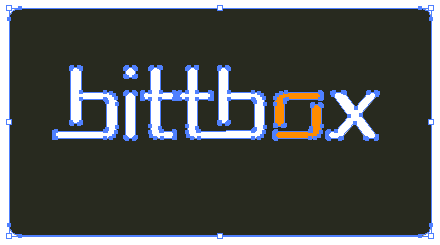
This is what it looks like selected:

Vector Web 2.0 Logo Reflection in Illustrator 2

First, make a duplicate of your logo by holding the “option/alt” AND “shift” keys, drag down, and release. Using this method allows you to keep your duplicate aligned exactly to the original. If you simply copy and paste, you will have to re-align the two logos.

Vector Web 2.0 Logo Reflection in Illustrator 3

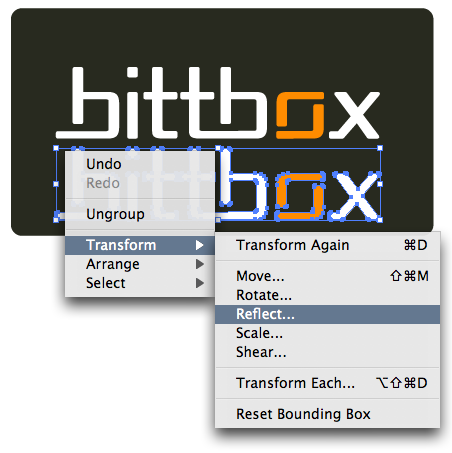
Reflect the duplicated logo by right clicking (control + click: Mac) and selceting Transform > Reflect.

Vector Web 2.0 Logo Reflection in Illustrator 4

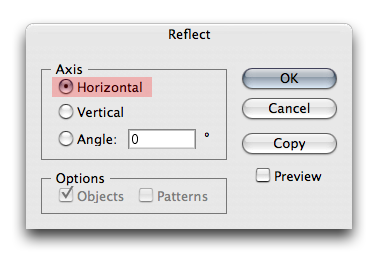
When reflecting, choose the “Horizontal” axis.

Vector Web 2.0 Logo Reflection in Illustrator 5

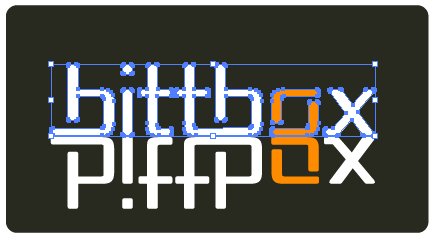
You should see your reflected logo similar to this:

Vector Web 2.0 Logo Reflection in Illustrator 6

Now move your reflected logo up to meet the bottom of the original. I like to leave a very small gap in between the two. It’s just my preference, but I think it adds a little extra dimension.

Vector Web 2.0 Logo Reflection in Illustrator 7

Select your original logo and “lock” it. This is setting up for a step to follow.

Vector Web 2.0 Logo Reflection in Illustrator 8
Vector Web 2.0 Logo Reflection in Illustrator 9

Now that your original logo is locked, create a rectangle on top that covers the entire path of your reflected logo. We are going to create an “Opacity Mask” out of this shape to control the appearance of the reflected logo. Opacity masks are similar to clipping masks in Illustrator, except they control transparency instead of visibility.

Vector Web 2.0 Logo Reflection in Illustrator 10

Fill that rectangle with a White-to-Black Gradient, and set the angle to -90. Opacity masks are always made using a White-to-Black or Black-to-White gradient, White being visible, and Black invisible.

Vector Web 2.0 Logo Reflection in Illustrator 11

This next part is up to you, but I usually make some adjustments to the gradient itself, to get my desired effect out of the Opacity Mask.

Vector Web 2.0 Logo Reflection in Illustrator 13
Vector Web 2.0 Logo Reflection in Illustrator 14

Now select both the reflected logo, and the gradient rectangle. (You can do this by hitting Control + A: PC, or Command + A: Mac, if everything else is locked like I mentioned above)

Vector Web 2.0 Logo Reflection in Illustrator 15

Apply your transparency mask by clicking on the arrow in the upper right of the Transparency Palette. Note: There is no right click for this, it must be accessed through the Transparency palette.

Vector Web 2.0 Logo Reflection in Illustrator 16

Now your gradient filled rectangle is controlling the opacity of the reflected logo!. You should see something similar to this, but it isn’t quite right yet, one more tweak, and your done.

Vector Web 2.0 Logo Reflection in Illustrator 17

Now to make the reflection a little more realistic, select your reflected logo, and take the transparency down. ( I took mine to 40%, but it’s up to you to get your desired effect)

Vector Web 2.0 Logo Reflection in Illustrator 18

And here is the final result:

Vector Web 2.0 Logo Reflection in Illustrator 19

Now you have a 100% vector logo with a spiffy Web 2.0 Reflection that is more versatile than any Photoshop tutorial can offer you. It can be scaled and manipulated to any size, for any purpose. You can import it into Photoshop and create raster images of any proportion. A great thing to have hanging around on your hard drive when you need a resize.

Taking the services of a web design studio as well as consulting with web hosting companies proves beneficial in the long run. As they not only assist in how to buy domain but also help in developing heavy online learning sites of A+ certification. Firms running the business of ppc affiliate program do educate their clients through ppc management as well as provide tips on directory submission and details of its benefits.

Related Posts:

  1. Glossy Vector Web 2.0 Logo Text in 5 Easy Steps
  2. Opacity Mask Basics: Illustrator
  3. Illustrator Tutorial: How to make a Vector Glass Button
  4. Free Vector Fading Corner
  5. Requested Tutorial: Crop Excess Illustrator Artwork
  6. Improve Your Illustrator Workflow with Layer Masking

This entry was posted on Sunday, March 4th, 2007 at 2:49 am and is filed under Illustrator. You can follow any responses to this entry through the RSS 2.0 feed. You can leave a response, or trackback from your own site.
Stumble It
Add to Del.icio.us

Did you like this post?

Digging and sharing is a great way to say thanks!

74 Responses to “Tutorial: Web 2.0 Logo Reflection in Vector format with Illustrator”

  1. Man, Thanks for this tutorial… I was hunting for this for a long time…

  2. actually jay, I was wondering how to do this!
    thanks for explaining it,
    I will definitely print this for offline work!

  3. I was close! On Payraise Calculator, I cheated and rather than using the Opacity Mask (which I need to learn!), I actually put another rectangle over reflected logo that has the same background color and then feathered the rectangle. It worked… but not as elegant (and proper) as your solution.

    Thanks!

  4. [...] Tutorial: Web 2.0 Logo Reflection in Vector format with Illustrator | BittBox Now you have a 100% vector logo with a spiffy Web 2.0 Reflection that is more versatile than any Photoshop tutorial can offer you. It can be scaled and manipulated to any size, for any purpose. You can import it into Photoshop and create raster images of (tags: web design photoshop Illustrator guides) [...]

  5. Ok, this is fantastic because I too was looking for this. It seems that there is a huge difference between Photoshop, which I am familiar with and Illustrator, which, for me, is like approaching the Death Star.

    I just wrote a post if your interested and maybe you can clear up some of my issues Bittbox.

    Thanks.

  6. Good stuff i say… Thanks..

  7. Bittbox, how do i make my backround black?

    I tried going to File- Document settings and then Transparancy and making the grids both balkc and clicking simulate paper.

    But then when i copied my logo into it, all i saw was outlines in black.

    hmmm i couldn’t see my logo.

  8. Lawton,

    There is no default black background in Illustrator. You have to make a black shape and put it under everything else, then lock it.

    ~BittBox

  9. Nice tutorial! I love opacity masks and need to remember to use them more.

    They’re great for texturizing shapes as well as altering their transparency. I learned a few months ago how to overlay lines and patterns (much like you do with the gradient here) to create effects like a cracked, vintage look.

    I guess it’s similar to overlaying images with textures in Photoshop, but yeah, the joy of this is keeping it vector. Very useful! Thanks, Bittbox.

    To Lawton: You can change the color of the artboard without drawing a background shape, but it will not be saved along with the design, so I don’t know how much sense it makes. For example, you can make the artboard red, but unless you draw a red background shape, your saved file will not show a red background.

    Just for interest’s sake, you can do it by going to File>Document Setup and then at the top menu where it says Artboard, select Transparency. Check the box for Simulate Colored Paper and then double click on the white color box. It’ll pop up a color selector. Pick the color you want and select OK. You can go back and change it as you work.

  10. Lol. Guess I should finish people’s entire posts before I comment. Sorry about the repetition.

  11. Thanks Liz. I don’t really know a whole lot about Illustrator. Yay! a new illustrator friend!

  12. To Doug: The proper way to do any of this is to get it done and finished and on your way to the next projecct.

    There are more effective ways allowing for easier editing and reuse of elements for later.

    There are hosts of techniques that various people use for a variety of reasons, using what works for you is the proper way to do it. With the exception that creating some messy stuff for another person down the line to output or make use of it can be irritating.

    I really appreciate BitBox’s efforts to show Illustrators power in outputing graphics for web use.

    Michael

  13. I tried this last night, worked like a charm. Thank you for your useful and easy to understand instructions!

  14. I never knew about the Opacity Mask until this tutorial so thanks very much! Its going to come in well handy in the future! Thanks
    Dan

  15. So simple, so elegant. It’s the perfect fit for what I needed. Thanks!

  16. I also tried to on a logo on a white background. I’m sure it looks better in black.

    Again, it dissappeared on me!

    Oh well. :)

  17. youre my hero…

  18. Hey found you blog tonight, this is great, I added you as a mybloglog contact.

    Take care

    Wayne

  19. soo many times I tryed to create reflections, but in no tutorial I found any good explination, that I can realyy understand, but here……oh, it’s awesome, I understood n I made it throw, oll the work paid it all, thnx alot u guys, u saved me………I’m soo glad I’ve found u. I’m new to illustrator, trying my best to learn how to use it, I hope that some day I’ll became an respected DTP n graphic designer.

  20. this is a great tutorial, thanks so much for posting this information.

    i love the “wet floor” or “reflective” look but i don’t know how to make it look right when there are letters that go below the baseline, like lowercase “p”, “g”, “q”, etc.

    if you move the reflection as close as your example above, the finished result looks funny where the letters and reflection overlap. there really isn’t any reflection at all where they overlap.

    what’s the best positioning of the opacity mask with these letters?

    i’m sorry if i didn’t make sense, i am a newbie at design so i am not sure if i explained things correctly.

    thanks for your help.

  21. “Now move your reflected logo up to meet the bottom of the original.”

    How do I move it? Is there a special (control+alt) way to? I can’t seem to move the relective box. (sorry, never worked in illustrator before)

    Thanks for sharing! Great site!

  22. When it comes to the reflection, you could always be lazy and try out Reflection.js: http://cow.neondragon.net/stuff/reflection/

  23. Howdy. This is my first visit to this site, and so far 3 of your tutorials have taught me more about graphic design than I ever could learn through my own self-learning.

    As more a web deveoloper than a designer, these tutorials you offer are AMAZING!

    Keep up the good work mate.

    Jeff

  24. I tried your reflection tutorial and I managed to get everything but my mask didn’t work. Is there anything else to consider when you are using a PC?

  25. @Ronda

    Everything should be the same on both a Mac and PC. The only thing I can think of is to make sure your gradient is on top before you make it an opacity mask, and to make sure you have both objects selected when applying the mask.

    ~BittBox

  26. Wow! Great tutorial! It’s really amazing how some of the most beautiful effects can be released so simply… when we know how to do it. Thanks a lot.
    I’m actually working on some webdesigns, and I’m learning a lot of things thanks to you. ;)

  27. This is amazingly simple. thanks for the great tip.

  28. Thank you so so much, you’re my god!!!!!!

  29. good idea, thank’s so much….

  30. [...] Disclaimer: This tutorial is a Inkscape version of Web 2.0 Logo Reflection in Vector format with Illustrator [...]

  31. Nice tutorial Bittbox. I am learning illustrator atm and this is a verry handy excercise! Thank u verry much! :)

  32. OneofIllustrators

    thx! i hv been looking for this for quite some time as a illustrator beginner. It’s really nice!

  33. thanks!!! worked perfect with osx and illustrator 10.0.3

  34. Anyone aware of similar tutorial for GIMP?

  35. Teacher, teacher, thank you. Really easy to follow. So easy, in fact, lots of fun. I’m becoming a Bittbox fan.

  36. Cheers, worked as a charm!
    -Pike

  37. Thank you so much for all of these awesome tutorials!

    But I’m having a little trouble. I’ve gone through all the steps, but anytime I try to make an opacity mask, the rectangle just becomes completely clear. the opacity is still at 100%, but you cant see a thing…what am I doing wrong?

  38. Absolutely Brilliant…Speechless, and just what I was looking for in logo design.

  39. thanks
    *o*
    u save me

  40. As Liz commented “I learned a few months ago how to overlay lines and patterns (much like you do with the gradient here) to create effects like a cracked, vintage look.” Could you do a tutorial on this tecnique mentitoned? would be curious. The logo reflection tutorial was great. worked in a flash. thank you!!

  41. Thank you very much for this tutorial - the results are fantastic and so easy once you know how!

  42. yeah good..been using ai evryday and haven’t thought of that.. nice tutorial

  43. [...] Bitbox podemos ver un muy buen tutorial de como tener reflejos en Illustrator de manera vectorizada. Si, ya [...]

  44. Absolutely great tuttorial, wish there were more tuttorials like this one around the web!
    Been searching like crazy for this! :D

    Thanks and keep up the good work!

  45. thanks a lot… Real nice … Nice steps… wish there will be more like this soon

  46. nice work .. i have done it its cool
    http://www.c77c.net

  47. good work

    thanks alot

    http://www.3lm1.com/vb

  48. Great tutorial but I’m having trouble with my gradient. It seems that it’s darkest side is not completely black. This causes the whole logo beeing reflected instead of the bottom part. For example the straight line of the ‘b’ in your logo is not completely visible in the reflection, but it is when I’m trying to create a relfection.

    Anything I might be doing wrong?

  49. Ok… apparently, the default gradient doesn’t go from white to black but from white to dark gray… *sigh* ;-)

    The quick gradient color change tutorial fixed my problem.

  50. It’s funny how simple techniques turn out to be so simple. Good job for this tutorial.

    Theres an Adobe Fireworks version of the tutorial found here:

    http://firetuts.com/index.php/2007/10/22/create-web20-logos-with-fireworks/

    Enjoy!

  51. Great tutorial. Knowing how to do this in InDesign, I really wanted to achieve the same effect in Illustrator so I could export the designs for more basic Microsoft products. Great job guys.

  52. More and more people are asking me for vector art after the project is done and I’m like, “it’s the web dude, I don’t have vector art.” So now I am digging into Illustrator and Flash and doing starting there first, then moving it to the Web. Anyway, this tutorial helped…thanks! I’ll digg it!

    http://www.pixelpunk.com

  53. Just an FYI Web 2.0 is not a design aesthetic but a set of ideas that are reflecting today’s client side development trends.

    Read about it here. Design is NOT mentioned anywhere.
    http://en.wikipedia.org/wiki/Web_2

    Reflective logos == Bad trend whore approach. Solid design shouldn’t be based on a passing trend.

    This is solid advice from someone who’s been in the industry for 12+ years.

  54. WOW ,, Good TUT ..
    Go on ..
    http://www.jaxey.com

  55. could anyone teach me how to do an image that it looks like mirror reflection that Shiny thing i mean

  56. web 2.0 it about reflection :-) nice tutorial

  57. Hi,

    There is trouble with images in this tutorial. :(

  58. Thanks KSaniya,

    I just moved to a new server, and the images got lost somehow.
    Should be working now :)

    ~Bitt

  59. Yes, it’s ok now. Thanks a lot!

  60. Thank you.

  61. [...] Link: Tutorial: Web 2.0 Logo Reflection in Vector format with Illustrator [...]

  62. you rock.

  63. http://i181.photobucket.com/albums/x318/helloloveli/thanks.jpg

    very easy tutorial, thank you.
    (i tried to do thankyou but the “y” really threw me off for the reflection. any suggestions?)
    i love you bittbox.

  64. thanks for this tutorial.

  65. Great Tutorial! Thanks!

  66. Thank you! :)

  67. This is a helful tut. Thanks.

  68. awesome tutorial - thanks so much :)

    nice work with all the screenshots and written info.

  69. Yet another great tutorial, thank you so much.

  70. thanks for that!

  71. PS: which font typeface was used for the bitbox logo

  72. @irphinx,

    Republika

  73. thanks a lot Jay. awesome.

LEAVE A COMMENT


Message: