Illustrator Tutorial: How to make a Vector Glass Button
If you are a regular BittBox reader, this is the post you’ve been waiting for! Not only will this tutorial help you make your own vector glass buttons, bars and who knows what else; it will help you to understand the structure of my free files a little better, and how to customize them easier. This tutorial covers how to create a basic vector glass style button in illustrator CS. Basic knowledge of Illustrator is required, but I tried to make it as strait-forward as possible.

Make a new (blank) Illustrator file, name it, and save it to your desktop. Select the “Rounded Rectangle” tool.

Click once on the artboard, without dragging, to bring up the Rounded Rectangle tool options dialogue box. From here you can set the exact width, height, and corner radius of your button.

Click “OK” or hit enter to create your basic button shape.
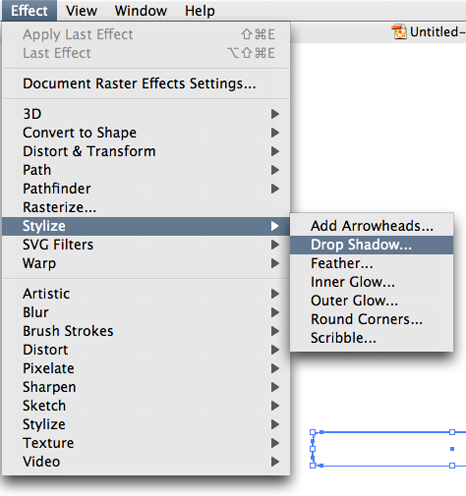
Next, apply a drop shadow, by going to the “Effect” menu and select > Stylize > Drop Shadow.
Choose your drop shadow settings. Note: Click “Preview” to see the settings live.

Now we have our basic button shape with a drop shadow.

Select your fill and apply the default black-to-white gradient from your swatches palette. In the Gradient palette, with your fill selected, click on the left white box to select the left gradient color. Now in your color palette, use the sliders to change that left color to a gray, instead of white. (or you can enter the values in the text fields, but they all need to be the same value to be a gray in RGB. i.e. 210, 210, 210, or 190, 190, 190. Also, in the gradient palette, change the angle to 90.

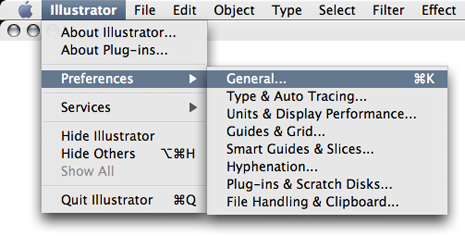
Next, open your Illustrator “Preferences > General” and make sure your keyboard (Nudge) increment is set to 1 px (1 pixel).

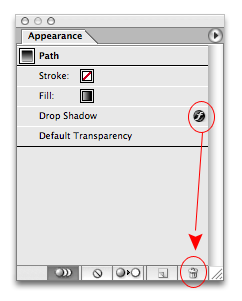
Now, using the Select Tool (black arrow), select your button shape, and copy and paste it. Then you need to get rid of the effects that it copied, so in the Appearance palette, drag the drop shadow of the newly pasted shape to the trash. Also, fill the newly pasted shape with white.
Use the Direct select tool (white arrow) to make your 2nd shape smaller than your original by selecting the points and moving them with your keyboard arrows. (Nudging) I usually do this in 3 steps as follows:



Now use the Delete Point tool and get rid of the bottom 2 points in your 2nd shape.

Use the Convert Anchor Point tool to get rid of the curves on the bottom 2 remaining points. Then select those same 2 points and Nudge them up 4 pixels.

Your second shape should now look like this:

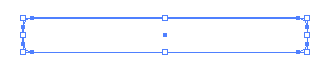
Select both shapes like this:

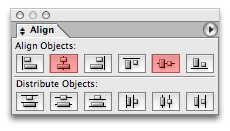
We are going to align these shapes together, but first make sure your align palette is not set to align to the artboard.
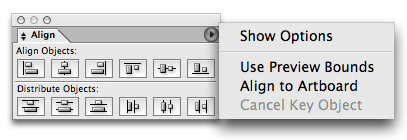
Align your 2 shapes to each other horizontally and vertically by hitting these 2 buttons in the Align palette. (doesn’t matter what order)

Now both shapes should be aligned like below. Select the original shape and lock it’s position by hitting “Command + 2″ Mac, or “Ctrl + 2″ PC.

Use the Rectangle tool to make a rectangle that completely covers your second shape. (the reflection shape)


Fill that shape with the default white-to-black gradient with an angle of -90

Select the top rectangle with the gradient and the reflection shape at the same time. Once selected, in the Transparency palette, click on the little arrow in the upper right. Select “Make Opacity Mask.” This creates a mask out of the top shape. White being visible, and black being invisible. Play around with the color values of your gradient to get your desired effect. It works kind of like a clipping mask, but you have to apply it through the transparency palette. There is no right click for this.

And presto! A glassy – completely vector image using only 3 shapes in illustrator. You can play with transparencies and all kinds of other options. I’m not going to give away ALL of my secrets, but I think this is a pretty generous post none-the-less. NOW! Go out there and make the UglyNet a little easier on the ol’ eye-socket, will ya?


Great tutorial, Thanks
Awesome ~ absolutely awesome!
This is great! Not only do you give away beautiful web design elements, but now you’re showing us how to make them ourselves. You rock. Thanks.
Thanks very much! Sometimes I struggle with Illustrator since I don’t use it on a daily basis… these tutorials really help a lot.
nice thanks!
Thanks a lot! Really appreciate the education.
Aligning the two shapes center aligns both elements, but what you really want is to offset vertically. Correct?
“Align your 2 shapes to each other horizontally and vertically by hitting these 2 buttons in the Align palette. (doesn?t matter what order)”
After using the align palette, nudge up the top part by 4 px….
best tutor
Muchas gracias por el tutorial !!!!
Great Tutorial, Im`ve searching for this! tnx a lot!
Wow, thank you! You’re covering a lot of topics on this site that I never learned in Graphic Design class.
Thank a lot! that is cool
excelente aportaci?n, muchas gracias.
animo raza!!
Thanks for this great & really useful info – helps learn skills that are in line with current graphic trends!
what photoshop is that?
i
i love it! TY! =)
weird. I don’t have a “Corner Radius” there. I have only Width and Height. :S
i love it thanks a lot
thanks a lot
i don’t quite get it.
when i try to do the last part doing transparency, i could not produce something that looks like that… not even close…what am i doing wrong there?
very very helpfull tutorial, thanx a lot man!!!!!
Prueba cambiar el tono negro del gradiente del primer rect?ngulo por 50% de negro y 100% de tu color favorito (CMYK)
thank you guys your great!!!
This is a great tutorial, but could you also elaborate on how you created the RSS glass icons in the freebies section? I probed around that AI file and there are some mysteries there (to me), like the gradient circle and the wavy opacity mask. Thanks!
How do I do this in CS3, sorry for the dumb question.
great tut!!!
BUT! i must be doing something wrong as my image looks just like yours but when i scale it up it’s not a true vector as it is pixelated and has jaggies. could you tell me what i am possibly doing wrong as a true vector doesn’t pixelate!!!
thanks very much you have a great site here!!
michelle
Really,
Very nice article for Glass button creation. I am using Adobe Illustrator 10. Your all mention steps are completed supported for Adobe illustrator 10, which is the strong point of this article.
This button is also look very good when we set some setting in “Transparency palette”
Blending mode=”Soft light” with while setting “Make Opacity Mask“
Grazie mille! Eccellente guida!
Thanks! Excellent tutorial!
Great tutorial – thanks.
Awesome! Always wondered how to get that perfect glass look! Your tutorial was amazing!
Nonsense
Fantastic!
Just one question (I’m probably having a blonde moment!)…how do you unlock the layer following Command+2?
:o)
Great tutorial Always wondered how to get that perfect glass look! Your tutorial was amazing!
Very good tutorial. Very east to follow. Good job.
Thanks for the tut, very clear & effective~
[...] Adobe Illustrator: Come realizzare un bottone Glass – Tutorial [...]
hey thanks alot, I’ve been having problems with the glare part
i didn’t know that you should choose them “both” before you choose the “Make Opacity Mask”
thanks again =o)
xxx
[...] View this tutorial here. [...]
That works so well, thank you
Thanks for your tutorial, very clear & amazing.
GOD WHY CANT I FIGURE OUT THE SIMPLE SH**. this has been puzzling me for a while. thanks. oh and a cool tip…
1.Put text half way up the mirror shape so that it extends ovr the top
2.Copy it and flip it upside down (putting it right under the original
3.Make an oppacity mask with the mirror shape and ur new text on top
4.VOILA DUDES. I don’t know what to call it but it looks cool doesn’t it (and its great to spice up links on ur site)
many thanx for u maaaaaaaan
this is one of my favorites!! thanks a lot!!
Wow! Nice tutorial. Ive been searching that for weeks. Great teachings! I love it.
Hi, I try your tutorial, but I am using the version for Mac Illustrator CS3, I try to do the last step as your instruction: Make Opacity Mask, but the top rectangle turns out to be white with the smaller rectangle. What have I done wrong? Please show me. Thanks a lot. Have a nice day :)
Which software do I need to create these buttons?
From where can I get it?
If its Mac Illustrator can I use it on Windows XP?
Can I use the buttons created by this in Microsoft .net?
Hello Sanket,
You need Adobe Illustrator (version 10 or can be higher).
you can download from Adobe site. Please visite here to download adobe illustrator:
http://www.adobe.com/downloads/
If can’t installed illustrator’s MAC version on Windows OS. You Need to download Windows version for your windows operating system.
Yes you can easily use these buttton in Microsoft .Net. You just need to save the buttons in PNG or Gif or Jpeg format then you can use it.
for saving in png, gif or jpeg format you just need to follow the steps given below:
1. First create the button in illustrator.
2. Now go on File menu and choose ‘Save for Web’ option.
3. You will see one window for ’save for web’.
4. let have look at the right side of the window ‘Settings’ panel.
5. Choose the image format from the dropdown box which you like. (gif,png or jepg).
6. Now click on Save Button to save the image at desired location.
7. Now you can use saved image in your Microsoft .Net project or Java Project.
Hope it will be helpful for you.
Have a nice day.
Chandresh Kesri
(Senior Creative Designer, Chambal.com, Inc)
Thanks Chandresh Kesri,
your advice will help me a lot in my final year project.
Fabulous! Thank you so much for your generosity.
Yeah baby, that really rocked my day :)
Thank you ss much!!
Nice tutorial… I’d do things slightly differently however. Using your method, the radius on the corners of your reflection shape is the same as the radius on the base shape. This means the two radii aren’t concentric when laid one inside the other.
If you do it this way you can get a slightly cleaner result:
Draw your original shape, copy it then paste in front. Select the top shape, give it a stroke, set the stroke to ‘inside’ and notch it up a few points. Then go Object > Path > Outline Stroke. Ungroup the shape then use the pathfinder to subtract the stroke from the shape. Presto!
I’d probably also ‘chop’ the top shape in half by drawing a rectangle over the top and using the pathfinder, rather than by deleting control points manually. Guess that’s cos I’m lazy!
Cheers for the tutorial though, informative site, keep it up.
It amazes me that Adobe hasn’t integrated some sort of ‘make-this-object-shiny’ filter to CS3… It’s all the rage after all, and making it a little easier to do would be great!
Don’t suppose it’s in CS4 as a feature, is it?
Thanks for a clear, concise tutorial though!
[...] http://www.bittbox.com/illustrator/illustrator-tutorial-how-to-make-a-vector-glass-button/ Post a comment — Trackback URI RSS 2.0 feed for these comments This entry (permalink) was posted on Sunday, November 2, 2008, at 11:32 pm by admin. Filed in Uncategorized. [...]
[...] Glass Buttons [...]
I am trying to create the glassy part but when I click on Make Opacity Mask or the Screen button as directed in other tutorials, The glassy part does not work. The Make Opacity just turns the last object invisible and if I do the screen version, it just makes the gradient white to grey. Any suggestions maybe it’s something in my Preferences or something. I have no idea. Thanks for you help in advance.
That works so well, good excellent, this is a good for learning. thanx a lot.
Good tutorial. Just one comment I noticed—you will likely want the corner radius on the interior shape to be different than that on the outside, to get the most realistic effect. You can see the corners aren’t exactly matched.
I do this by creating a plain rectangle for the interior shape, placing it where I want it, selecting “Object > Style > Rounded Corners” and adjusting the corner radius with the pop-up dialog until it looks about right. Then you can select “Edit > Expand Appearance” to finalize it, allowing you to then delete the bottom points as you did in your tutorial.
that’s great but still its not what i am looking for .
i want transparent button in png
bonisimo! muchas gracias, me has salvado horas de vida :) gracias
Great tutorial and very well-explained steps. That’s what I was looking for. Thanks alot.
Great tutorial, until I get to the gradient part,and cant get it to stay what I put in it.What am I doing wrong??
Help! Drop Shadow is missing in AI CS2! When I go to Effects>Stylize all I have is glowing edges! Is there something I can do to fix this?
Thanks!
[...] glass button tutorial [...]
I’m having the same problem as Jen. My Effects>Stylize only has the glowing edges. Has anyone figured out how to fix this bug?
Great tut!
a good site
[...] buttons (Illustrator tutorials) http://www.ndesign-studio.com/resources/tutorials/glassy-button/ http://www.bittbox.com/illustrator/illustrator-tutorial-how-to-make-a-vector-glass-button/ [...]
thanks, i’m always surfing for new ideas to expand my brain
[...] Glass Buttons [...]
good
[...] Glass Bar – How to create a glossy glass bar in illustrator [...]
[...] 1 feather, and 1 transparency mask. If you don’t know what a transparency mask is, read this post on how to create a vector glass button in Illustrator, with detailed instructions. AI (including [...]
glad to see this tutorial ,
I’m wondering if there will be a tutorial tells how to make a button pressed :D
Steller post!
Thanks
[...] Backdrop Make Lovely 3D Looking Graphs Cool Vector Flower How to draw a koi fish Glass Buttons Mosaic Image effect in Illustrator Faery-Tale [...]
That was great!!! I made a superfine glass button. Thank you for sharing your knowledge!
Sindra
Austria, Europe
thank you very usefull
Excellent tutorial! I have been searching and trying out other tutorials and just could never get that nice crisp glassy effect they put even right in their tutorials. Mine always seemed to come out slightly “dulled out”.
Very nice work; thank you also for the time and effort you are putting in to educate total noobs like me.
I have one question however, and I realize that this is not in the scope of your tutorial but is really the next step after creating the button – how do you go about adding decent looking text to this button now? I assume that you would need to have the text underneath your rectangle that becomes the opacity mask to create the same reflection effect on the text, but mine just seems to go all faded under the mask. Any ideas?
Thanks again for a fabulous piece of work.
i am forget how to make this glassy button but thanks to your tutorials, i am again make it…thanks again..!! :)
[...] Click on the picture or here to see the tutorial!!! 0 Comment [...]