Illustrator Tutorial: How To Make 3D Vector Vintage Stars

I’m going to walk you through a technique to create vintage looking 3d stars in Illustrator. You guessed it, 100% vector. By the time we’re done, there will be 0 (zero) effects, or filters. You will have a very useful vintage star vector on your artboard, and a new skill to go with it. With vector art gaining ground every day because of its long-term value and versatility, new vector art styles are constantly emerging. I’ve seen quite a few of these 3D style shapes that seem to ‘pop’ out at you being used in many different applications. As always, it’s not quite as hard as you would think. You might just need a little shove in the right direction. Ok, lets make one ourselves!

Illustrator Tutorial: How to Make A 3D Vector Vintage Star

1. Make your star shape

Use the Star tool and hold Shift to make a Star shape (or any shape you want, really) on the artboard. (everything you see here is exact size).

Illustrator Tutorial: How to Make A 3D Vector Vintage Star

2. Extrude your shape

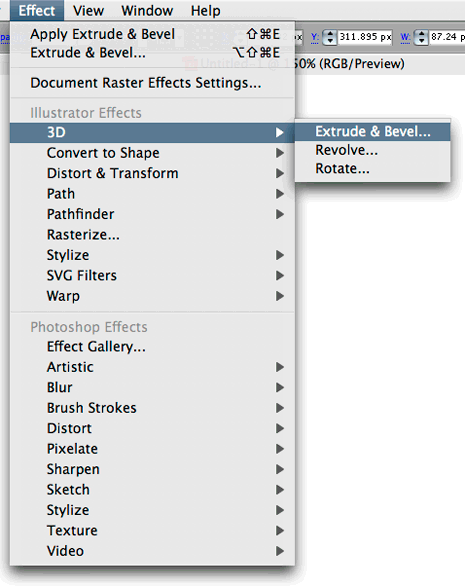
With your Star selected, in the Effect menu go to 3D > Extrude and Bevel.

Illustrator Tutorial: How to Make A 3D Vector Vintage Star

Check the ‘Preview’ option so you can see what you’re working with.

Illustrator Tutorial: How to Make A 3D Vector Vintage Star

Now you should see something like this:

Illustrator Tutorial: How to Make A 3D Vector Vintage Star

Now take the ‘Perspective’ setting all the way to the right (160 degrees)

Illustrator Tutorial: How to Make A 3D Vector Vintage Star

Now make your Extrude depth something like 900 or so.

Illustrator Tutorial: How to Make A 3D Vector Vintage Star

Click on the blue box and drag to get your desired rotation.

Illustrator Tutorial: How to Make A 3D Vector Vintage Star

Click OK, and you should have something like this:

Illustrator Tutorial: How to Make A 3D Vector Vintage Star

3. Expand Appearance

Now that we have our 3D shape, we will most likely want to have a little more control over it. Go to Object > Expand Appearance and click OK to get rid of the effect and separate our effect into individual shapes that we can edit.

Illustrator Tutorial: How to Make A 3D Vector Vintage Star

You’ll notice that we now have individual shapes for each side of the 3D star shape (and the effect s gone as well, which is good). Great! Now lets make a few more changes.

Illustrator Tutorial: How to Make A 3D Vector Vintage Star

4. Fill the Sides with a Gradient.

To do this, you can either ungroup (about 3 times) until you can select the individual shapes, or you can use the Direct Select Tool (white arrow) to select the individual shapes and fill them with a gradient.

Illustrator Tutorial: How to Make A 3D Vector Vintage Star

Do the same for all of the sides.

Illustrator Tutorial: How to Make A 3D Vector Vintage Star

This is pretty much a 3D Vintage Star already, but there are a few extra touches we can add to take it a step further.

5. Offset the Front Face of the Star

To do this you will, again, either have to ungroup everything until you can select an individual shape, or use the Direct Select Tool (white arrow).

Illustrator Tutorial: How to Make A 3D Vector Vintage Star

Select the face of the Star.

Illustrator Tutorial: How to Make A 3D Vector Vintage Star

In the menu, go to Object > Path > Offset Path.

Illustrator Tutorial: How to Make A 3D Vector Vintage Star

Choose a negative value for the offset. (Negative = Smaller/Inside the Selected Shape) I chose -8px.

Illustrator Tutorial: How to Make A 3D Vector Vintage Star

Click OK and you will see your original Star face, and the new offset one.

Illustrator Tutorial: How to Make A 3D Vector Vintage Star

Click once on the blank artboard to deselect everything, then use the Direct Select Tool to select the new (smaller) star.

Illustrator Tutorial: How to Make A 3D Vector Vintage Star

Fill this smaller star with a different color to add something a little extra to your vintage star design.

Illustrator Tutorial: How to Make A 3D Vector Vintage Star

Take it a step further:

6. Add a stroke around the entire group.

Hit Command/Control + A to select everything, then hold Option/Alt, click, drag and release to duplicate your shape. (or you can copy and paste if you like)

Illustrator Tutorial: How to Make A 3D Vector Vintage Star

Now, select the NEW group of shapes and if they are grouped, you must ungroup them until you can select individual shapes with the black arrow. DON”T SKIP THIS STEP.

Illustrator Tutorial: How to Make A 3D Vector Vintage Star

Now, with all of the new (individual) shapes selected, in the Pathfinder palette (Window > Pathfinder) hit the “Add to Shape Area” button.

Illustrator Tutorial: How to Make A 3D Vector Vintage Star

Keep everything selected the way it is and immediately hit the “Expand” button in the Pathfinder palette.

Illustrator Tutorial: How to Make A 3D Vector Vintage Star

Sweetness! Now we have a single vector path that is an exact copy of our 3d Star shape. Now all we have to do is add a Stroke and Align. You can change the fill if you want, but you won’t be able to see it anyway. It’s up to you. I chose a dark 3px Stroke.

Illustrator Tutorial: How to Make A 3D Vector Vintage Star

7. Align Your 2 Shapes

IMPORTANT: To align, first, make sure your shape on the left (the ‘3d’ shape is grouped). Then select both of your shapes like below, and hit these two buttons in the Align palette (Window > Align) in any order. (you probably want to uncheck ‘align to artboard’ in the palette options first).

Illustrator Tutorial: How to Make A 3D Vector Vintage Star

If your shape with the stroke is on top it will look like this. So all you have to do to get it behind the 3d shape is (with the black arrow) click on the blank artboard once to deselect everything. Then select your top shape with the stroke on it, and hit Command/Control + { until it gets behind your 3d star shape.

Illustrator Tutorial: How to Make A 3D Vector Vintage Star

Now it should look something like this!

Illustrator Tutorial: How to Make A 3D Vector Vintage Star

That should be enough to get you started, but I have one extra tip for you before you go…

Extra Bling

You can literally do anything you want from this point, but here is a quick tip to take it one more step:

You can easily make the front of your vintage star appear to be ‘inset’ by simply duplicating the smaller star shape, filling it with a dark color, and nudging it up and over. Like this:

Illustrator Tutorial: How to Make A 3D Vector Vintage Star

Bonus Freebie:

You can download the file I used to make the Cover Image at the beginning of this tutorial! (vector)

Illustrator Tutorial: How to Make A 3D Vector Vintage Star

Download EPS (Ill version 8 eps)

Includes: – EPS (1)

Download SVG (svg 1.1)

Includes: – SVG (1)

This entry was posted on Saturday, September 15th, 2007 at 6:52 pm and is filed under Illustrator. You can follow any responses to this entry through the RSS 2.0 feed. You can leave a response, or trackback from your own site.
Stumble It
Add to Del.icio.us

83 Responses to “Illustrator Tutorial: How To Make 3D Vector Vintage Stars”

  1. OK. I’ve been reading Bittbox for a while now. I’ve gotta ask (since both file types are available), how do you convert your EPS and SVG files so seamlessly? I do most of my work in Inkscape (non-profit), and constantly run into situations where an EPS file is needed. Every time I try to convert to EPS I don’t get exactly what I need.

    Also, thanks for this tutorial. Its given me a couple of good ideas.

  2. @DinkLock

    In Illustrator, you can simply “save as” SVG. Nothing fancy.

    ~Bitt

  3. I love your blog. You help us so much. Thank you =)

  4. I think DinkLock was asking how you convert it for webpresentation so seamlessly and the answer is PNG!

  5. thanks bitt, love it

  6. always wanted to know how to do this! thanks

  7. Funky!
    One of your best tutorials.
    P

  8. Stumbled upon your site by accident.

    Boy, am I glad I did!

    This is amazing!

    I do wish I’d discovered it earlier.

    Thanks for the wonderful brushes & tutorials.

    You made my day! ;)

  9. Wow, thanks!
    I’ve often wondered how to do this, usually with typography. I’ve always avoided filters ‘n such in illustrator, but “expand appearance” is really wonderful at returning wild effects to usable fills and strokes.

    I think I’m gonna have to explore illy some more.

  10. Just GREAT, this is absolutly amazing, you help alot in every single topic

  11. Thank You! I have been trying to figure this out for a while and everything I’ve done was soooo much harder. I’m just having a blast! Thank You!

  12. [...] Tutorial para realiizar estrellas en 3D con Ilustrador En BitBox tenemos un tutorial paso a paso para realizar estrellas en 3D, esta en inglés pero es fácil seguir los pasos, puedes verlo en: Illustrator Tutorial: How To Make 3D Vector Vintage Stars. [...]

  13. [...] une fois bittbox propose un tutorial pour illustrator très bien réalisé pour faire des étoiles avec un look vintage le tout en [...]

  14. [...] wonderful blog Bittox has yielded another great vector tip. The tutorial is ostensibly about creating “3D vector vintage stars”, but the method is insanely valuable in a variety of scenarios- anyone who’s created this [...]

  15. This is just amazing! I love your blog!

  16. hey long time lurker here. Just thought that i would mention another way to do this, perhaps simpler.
    Just make a small star, and a big star of different colors, go to obect, blend, make blend. you can play around with the blend settings to get some pretty great effects

  17. Great tutorial! :) Inspirational and useful.

  18. [...] BittBox provides an EPS of some of the stars he’s created as well as a tutorial so you can make some of your own. [...]

  19. hi! i´m kinda new to illustrator and was I have cs2 and was wondering how can I open some brushes I downloaded in to the program. thanks!

  20. @Tati,

    In the menu, go to Window > Brush Libraries. If you installed it correctly, it will appear in the list.

    ~Bitt

  21. Top tutorial Bitt!

  22. so very helpful… thank you, benevolent genius.

    blessings…

  23. Your site is Awesome bro! Thanks for all the tips!

  24. I really need a newer version of Illustrator. Any way of doing this in an older version? 10 maybe?

  25. [...] Tutorials – website – Illustrator tutorial by the famous BittBox Blog. Learn how to create vintage [...]

  26. this is sweet!!

  27. oh this is nice. can you extrude it in a way that it curves?

  28. Im came here by searching for somthing. This is very useful for my practise. Thank u so much.

  29. Perfect tutorial, now i test in my illustrator CS2 and it work perfect.

  30. thanks u so much…….. from this tutorial i learned a lot

  31. [...] How To Make 3D Vector Vintage StarsI’m going to walk you through a technique to create vintage looking 3d stars in Illustrator. You guessed it, 100% vector. [...]

  32. [...] How To Make 3D Vector Vintage StarsI’m going to walk you through a technique to create vintage looking 3d stars in Illustrator. You guessed it, 100% vector. [...]

  33. [...] How To Make 3D Vector Vintage Stars I’m going to walk you through a technique to create vintage looking 3d stars in Illustrator. You guessed it, 100% vector. [...]

  34. ey esto si sirve se los recomiendo

  35. hey you! what version of inkscape are you using???

  36. Hehehh.. Best Tutorials man.. I Loved It.. Friends Love It.. Everyone Love IT MAN!! Keep up the good work.. If you have more tuts that come up please let me know .. Please mail me..
    Thank’s A LOT A BUNCH A MILLIONS!!!!!!

  37. [...] How to make 3D vintage stars [...]

  38. I love it, really!

    but, what program did you use?
    I see you have an Apple.
    But, what program?
    Greets Julia

  39. Thank’s a lot for u’r help…

    i very help from u’r adviced…

    Wish u luck…

  40. [...] How To Make 3D Vector Vintage Stars I’m going to walk you through a technique to create vintage looking 3d stars in Illustrator. You guessed it, 100% vector. [...]

  41. [...] Illustrator Tutorial: How To Make 3D Vector Vintage Stars [...]

  42. thank you so much ! I love your site. I’ve never used illustrator before, But I think I’ll start NOW :D

  43. [...] Tutorials – website – Illustrator tutorial by the famous BittBox Blog. Learn how to create vintage [...]

  44. Legendary. Just random stuff, not this post in particular.

  45. [...] How to Make 3D Vector Vintage Stars [...]

  46. how can i move it? like a S shape ??

  47. nagmayat… nagasat nak ta nasurutak dayta dude

  48. this stunk really really really really really really really baddly

  49. i have corel drawx3.iwant to create designs like u have created please guide

  50. [...] Illustrator Tutorial: How To Make 3D Vector Vintage Stars [...]

  51. [...] How To Make 3D Vector Vintage Stars I’m going to walk you through a technique to create vintage looking 3d stars in Illustrator. You guessed it, 100% vector. [...]

  52. [...] .: Vintage Stars [...]

  53. It didn’t work, not very well explained, very disappointed.

  54. is not very lovely he is simple thing

  55. [...] 11. How to Make 3D Vector Vintage Stars [...]

  56. [...] 11. ???????? ????????? ?????-??????: [...]

  57. [...] 11. ???????? ????????? ?????-??????: [...]

  58. thanks nice job

  59. [...] How to Make 3D Vector Vintage Stars In this tutorial, you’ll learn how to create 3D vector stars in [...]

  60. [...] 11. How to Make 3D Vector Vintage Stars [...]

  61. Hi, love the site!

    I was just wondering; Is there a way to get the vanishing points of all the different stars to realistically match to one point? – As in a real-life perspective drawing. Please reply as I think I can use the effect in a yearbook section, I have been asked to do.

    - David

    - David

  62. [...] 33. How To Make 3D Vector Vintage Stars [...]

  63. [...] Creación de estrellas en 3D [...]

  64. [...] Illustrator iPod 3D logo LCD alarm clock Create a rotatable globe in adobe Illustrator How to make 3D vector vintage stars Christmas lights Cuore glossy 3D logo tutorial How to create funky 3D springs in Illustrator [...]

  65. thank you good job freind

  66. [...] Illustrator Tutorial: How To Make 3D Vector Vintage Stars [...]

  67. cool. Thanks for sharing

  68. its a good Software to create a nice and latest designed

  69. [...] ogni singola parte a tuo piacimento come se fosse un elaborato normale. Guarda qui ad esempio: Illustrator Tutorial: How To Make 3D Vector Vintage Stars | BittBox __________________ Francesco [...]

  70. [...] How To Make 3D Vector Vintage Stars I’m going to walk you through a technique to create vintage looking 3d stars in Illustrator. You guessed it, 100% vector. [...]

  71. Great tutorial budy, very useful !

  72. Great tutorial !

    Just one question though, when you use the extrude depth option in the “3D extrude & bevel options”, how would you make it so its bending? rather than the straight shooting star

  73. [...] Tutorial 3 [...]

  74. [...] How To Make 3D Vector Vintage Stars I’m going to walk you through a technique to create vintage looking 3d stars in Illustrator. You guessed it, 100% vector. [...]

  75. [...] How To Make 3D Vector Vintage Stars I’m going to walk you through a technique to create vintage looking 3d stars in Illustrator. You guessed it, 100% vector. [...]

  76. [...] 17. Illustrator Tutorial: How To Make 3D Vector Vintage Stars [...]

  77. [...] 17. Illustrator Tutorial: How To Make 3D Vector Vintage Stars [...]

  78. [...] propose un tutorial pour illustrator très bien réalisé pour faire des étoiles avec un look vintage le tout en [...]

  79. [...] How To Make 3D Vector Vintage Stars I’m going to walk you through a technique to create vintage looking 3d stars in Illustrator. You guessed it, 100% vector. [...]

  80. [...] 3D stars! That is all. Instructions here. [...]

  81. Hi there!! this is an exelent tutorial just what i was looking for, thanks from México

  82. it’s me again XD i was wondering if is posible to make rounded stars, i mean de peaks please reply me

    Thanks a lot!!

LEAVE A COMMENT


Message: