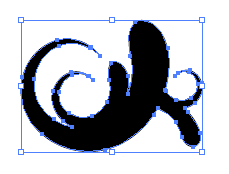
Illustrator: How to Make Custom Swooshes, Swirls, and Curls

I’ve gotten a lot of responses to this post about how I made the intricate designs in those headers. Swirls, and swooshes, or whatever you want to call them, are pretty hard to come by as a freebie (except here on BittBox), and they are even more rare in vector format. Part of the reason is that most people, even avid Illustrator users, don’t realize how easy it is to create these shapes. All it takes is a few simple, yet not highly utilized Illustrator tips. This tutorial will show you how to create your own curlies, and swooshes easily, in Illustrator. It’s not nearly as difficult as you might think. . .

Illustrator Swirls, Curls, and Swooshes Tutorial

And to answer all of your questions: Yes I made all of those designs on my own. The same goes for every BittBox release. All of my files are hand-made by me, not borrowed. If this is your first time to attempt a tutorial like this, I suggest following it exactly as I have it here, then going back over the process and playing with your options later. I’m going to outline how to do this, but you should always take my methods and play around with your options such as stroke sizes or brush shapes.

Lets Get Started:

We are going to create a custom brush in Illustrator to help us make these shapes a lot quicker. The first thing you need to do is use the “Elipse” (circle) tool and create a circle on the artboard. Hold down the Shift key while dragging to constrain the circle. The circle shown here is the exact size I used.

Illustrator Swirls, Curls, and Swooshes Tutorial 2

Now use the Direct Selection Tool (white arrow) to select the point on the right side of that circle and drag it out to the right. Like this:

Illustrator Swirls, Curls, and Swooshes Tutorial 3
Illustrator Swirls, Curls, and Swooshes Tutorial 4

Select the Convert Achor Point tool and click on the achor point you dragged to get rid of the handle bars and make it a sharp corner.

Illustrator Swirls, Curls, and Swooshes Tutorial 5
Illustrator Swirls, Curls, and Swooshes Tutorial 6

Select your shape with the Selection Tool (black arrow), and in the “Brushes” palette, click on the arrow in the upper right. Select “New Brush.”

Illustrator Swirls, Curls, and Swooshes Tutorial 35
Illustrator Swirls, Curls, and Swooshes Tutorial 8

You will get a new brush promt. Select “New Art Brush” ant hit OK.

Illustrator Swirls, Curls, and Swooshes Tutorial 9

Now you will be given some brush options. Make sure your brush direction goes from left to right (Big to Small) like below, and hit OK. You can play with these settings later.
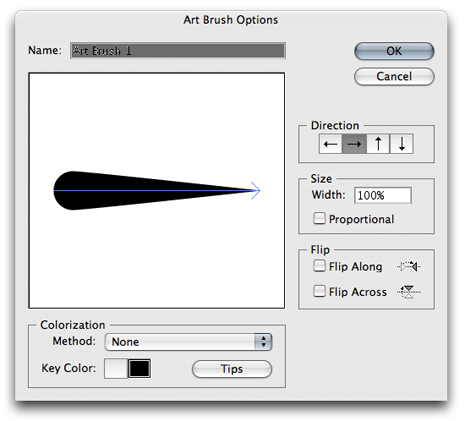
Illustrator Swirls, Curls, and Swooshes Tutorial 10

You should now see your new brush in your brushes palette.

Illustrator Swirls, Curls, and Swooshes Tutorial 16

You’ve got yor Brush, Now make a Swoosh:

First, make sure you set your stroke to black, and “none” for fill, in the tools palette. Like this:

Illustrator Swirls, Curls, and Swooshes Tutorial 13

Now select the “Spiral” tool, and click once on the artboard without dragging to bring up the tool options. Below are the settings I used: Radius-50px, Decay-80, Segments-4. Again, play with these settings later.

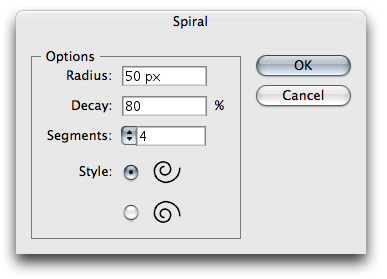
Illustrator Swirls, Curls, and Swooshes Tutorial 12
Illustrator Swirls, Curls, and Swooshes Tutorial 15

Click “OK” to create your shape, which should look like this:
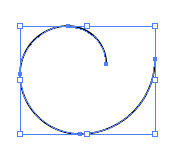
Illustrator Swirls, Curls, and Swooshes Tutorial 14

Keep your shape selected and apply your custom brush we just made by clicking on it in the “Brushes” Palette.

Illustrator Swirls, Curls, and Swooshes Tutorial 16

Your shape should now look like this:

Illustrator Swirls, Curls, and Swooshes Tutorial 17

Now adjust your stroke size in the Stroke palette.

Illustrator Swirls, Curls, and Swooshes Tutorial 18
Illustrator Swirls, Curls, and Swooshes Tutorial 19

I rotated my shape a bitt:

Illustrator Swirls, Curls, and Swooshes Tutorial 20

Combining Multiple Swirls:

Now that you have your basic swirl, and an easy way to quickly create more, lets combine a couple and make an interesting design. Read this section closely because if you miss a step, you might litter your Illustrator file with leftover paths that you can’t see.

Use the Spiral tool to create a second swirl with these settings: Radius-30px, Decay-80, Segments-2. (detailed instructions above) And apply the same custom brush stroke. Your artboard should now look like this:

Illustrator Swirls, Curls, and Swooshes Tutorial 25

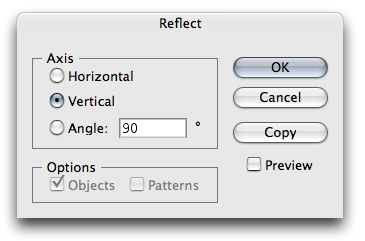
Reflect your new shape by right clicking on it and selecting “Transform – Reflect.”

Illustrator Swirls, Curls, and Swooshes Tutorial 26

Make sure your reflect axis is Vertical and click OK
Illustrator Swirls, Curls, and Swooshes Tutorial 27

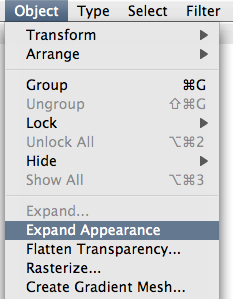
Next, Overlap your 2 shapes the way you like them. Keep them selected, then go to the “Object” menu and select “Expand Appearance.”
Illustrator Swirls, Curls, and Swooshes Tutorial 29

What this does is outline the brush stroke. So now you have your 2 shapes but they have an outline, AND the leftover path from the Spiral tool. We need to get rid of the leftover path so it doesn’t get in the way later. Your shape should now look something like this:

Illustrator Swirls, Curls, and Swooshes Tutorial 30

Use the Direct Selection Tool (white arrow) to select BOTH of your shapes like below, and drag them away from their current position to expose the leftover spiral paths. Notice that you don’t see the paths in the selection before dragging.

Illustrator Swirls, Curls, and Swooshes Tutorial 31
Illustrator Swirls, Curls, and Swooshes Tutorial 50
Now that you dragged your two filled shapes away from where they were, you can delete the leftover spiral paths. You won’t be able to see these paths, so you can do one of 2 things to find them quickly. 1. Hit Control + A on the keyboard, to select everything and you will see all your paths on the artboard. Or 2. Hit Control + Y to view everything in outline mode. Either way select the Leftover spiral paths and delete them. I used Control + A.Then I deselected my filled shapes by holding down “Shift” and clicking on them. Then I hit Delete on the keyboard.

Illustrator Swirls, Curls, and Swooshes Tutorial 36

Now that you have your filled, outlined swooshes, you can easily combine them into one shape with a single path, using the “Pathfinder” palette. Select both of your shapes, and click on the first icon in the Pathfinder to combine the shapes. Important: After combining the path, immediately click the “Expand” button in the same Pathfinder palette. This Gets rid of any overlapping paths!

Illustrator Swirls, Curls, and Swooshes Tutorial 32

Here is the result: A single swoosh made from 2, with one path!

Illustrator Swirls, Curls, and Swooshes Tutorial 34

A couple of tips for exploring this on your own:

Now that you have harnessed the power of a custom brush, expanding appearance, and pathfinder. (Wow, I guess this tutorial covers a lot more than I thought.) I have a couple tips to help you speed up your swirl creating process:

Once you create 1 swirl design, it’s easy to copy and overlap that same design by resizing, reflecting, or rotating, to create a more complex design derived from the original. Like this:

Illustrator Swirls, Curls, and Swooshes Tutorial 40

Then combine their paths in the Pathfinder palette (detailed instructions above) by hitting the combine paths icon, and Expand button, in that order.

Illustrator Swirls, Curls, and Swooshes Tutorial 41

Here is the result:

Illustrator Swirls, Curls, and Swooshes Tutorial 42

Best Tip Ever: ALWAYS keep a copy of your original shape untouched on your artboard somewhere, don’t rely on “Undo.”

I hope this tutorial helps! It took me a long time to figure all of this out, but once you really look at it, all it takes is a few key steps, which individually aren’t that advanced.

And, as always:

Download the file I used for this tutorial:

Includes: – AI (1) EPS (1) SVG (1)

This entry was posted on Saturday, February 17th, 2007 at 1:38 pm and is filed under Illustrator. You can follow any responses to this entry through the RSS 2.0 feed. You can leave a response, or trackback from your own site.
Stumble It
Add to Del.icio.us

213 Responses to “Illustrator: How to Make Custom Swooshes, Swirls, and Curls”

  1. awesome, thanks so much!

  2. I don’t think there’s a better site on Illustrator anywhere, this is great info! Thanks!

  3. [...] Illustrator: How to Make Custom Swooshes, Swirls, and Curls | BittBox [...]

  4. Thanks for the generosity . I’ll buy you a beer.

  5. [...] Swooshes and Swirls – Technique to make decorative elements [...]

  6. This was brilliant! Thank you so much!

  7. Great tutorial and love the designs. I really like this style for decoration but there is one aspect of it that is really confusing me. I use Illustrator CS and I cannot figure out how to get the shapes like the middle ones in the corners2.ai from the fancy corner designs. Specifically I mean the designs where it looks as though one shape has three white lines over it to split it up. It’s either done that way with the lines over a shape to split it or it was made with all separate shapes that match the curve of the outside of the shape next to it. Could you or anyone else explain this part to me. I’m not interested in copying the style here but I want to be able to have continuous shapes that are separated by white space. Thanks

  8. [...] How to Make Custom Swooshes, Swirls, and Curls using Illustrator is a tutorial provided by Bittbox which many students of textile design will find useful. graphics Illustrator [...]

  9. Hey, the tutorial was a great one, iv been busting my balls lately with the pen tool and this made me llook at vector images in another way.
    Just a quick question, when i make a swirl i am getting a white outline around it even though there is no stroke or fill?

  10. Wow. what an amazing tutorial. thank you for this beautiful, and yet, simple! tutorial .I can do this too. I have been trying to get my hands around Illustrator and it is NOT easy, and yet with your example, it is!

    Thank you. Please feel free, if you want, to visit my Design Blog and leave some helpful ways that I can make it better.

    Thanks again, i will be returning!

    Lawton

  11. What is the difference bewteen eps ai and svg files?

    Thank you.

  12. Not really much you can see, but AI is the native Illustrator format, EPS (Encapsulated Post Script) is more universal, but still vector, and SVG (Scalable Vector Graphics) also an attempt to be a more universal Vector format.

    For instance, if you are using Ilustrator, you would want to use the AI format, and If you use inkScape, you would want to use SVG. All formats will produce the same results, given some differences in the grouping of objects.

    ~BittBox

  13. @Nick

    Create your big shape they way you like it, then make a stroke or curved path on top of it. Then with your top path selected, go to the Object menu, and select “Path > Divide Objects Below”
    If you want the space to be larger, outline your stroke on your top shape before you divide.

    ~BittBox

  14. [...] Illustrator: How to Make Custom Swooshes, Swirls, and Curls | BittBox Sharing Is Good. These icons link to social bookmarking sites where readers can share and discover new web pages. [...]

  15. i knew it was something simple like that i just couldnt find any info on it. thanks a lot and keep up the good work :)

  16. Hi, one more question. SInce you are awesome at Illustrator and I am just beginning, having been a Photoshop guy, is there a great book on logo design, with step by step processes likethe ones you have on your site?

    I know this is kind of a vague question but these process seems highly technical when it should not be. Or, maybe it should be really hard to grasp and understand :)

  17. I honestly couldn’t tell you. I usually read tutorials across the web.

    ~BittBox

  18. Pedro Carvalho

    Great tutorial. Very very interesting

  19. Nice tutorial. I’ve tried making these on my own before, but you did a much nicer job!

  20. Thanks for finally clearing this up for me! I’ve been looking EVERYWHERE for this tutorial, and it drove me bonkers seeing everyone using it and wondering how they all knew how. NOW I KNOW TOO, and let me tell you, that’s a good feeling, knowing is.

  21. Alan McMillan

    Thank you for the tutorial, it was a great help! I have been trying to figure this out for a long time but I just couldn’t ever seem to get it quite right. Now I finally know how to do this.

  22. I love your tutorials. Everything from the way you break the process down to the tone of the writing sends out warm, feel-good vibes.

    Thanks!

  23. This one is great! Now I went bezerk on the swirlies. Thnx alot!

  24. REALLY REALLY REALLY GREAT!!!!!! *wow* I love your blog!!

  25. walaa!!!

    another magic tips
    thx

  26. thanks for this. for some reason there’s something in my brain that refuses to understand Illustrator, it’s like hard math to me. hopefully, after years and years of swearing at my computer, this will do the trick. good stuff.

  27. Wow. I didn’t know it was that easy… Nice technique

  28. [...] pinceles. Crear una forma (en francés). Un pequeño programa visualizador de pinceles Como hacer pinceles en Illustrator con formas espirales o rizos. Creando pinceles grunge Haz tus propios pinceles Como [...]

  29. [...] How to Make Custom Swooshes, Swirls, and Curls [...]

  30. Aww….. I’ve been wondering for ages how to make nice even swirls… this is the best thing since getting my Dukes of Hazzard racing set back when I was 8…..

    Thanks!

  31. thanks…i’ve been trying on my own for months to get this effect…

  32. Muy bueno, genial la explicacion, congratulation, thanks.

  33. why when i arrange other swirls..
    i see a white outline around it

  34. Hey there, great tutorial. One thing that may make life easier on you. After you expand appearance (when you go to combine your paths), just select your shapes and right click, then choose “Ungroup.” This will make the outline seperate from the original brush path line. This way you don’t have to select each shape point by point. I hope that makes sense. It should save you a ton of time.

    Thanks again though. Been using the program for 10+ years and always finding newer or simpler ways to do things. Appreciate the hard work on the site.

  35. Wow!!! thnx…….g888 1 2 start wit. it helpd me lots 2 expand my knwledge of illustrator ;) m lookin forward 4 such tutorials which wud help me in my wrk.

  36. Your custom swooshes, swirls and curls is the same technique I made up and posted months earlier at Photoshop Caf?.

    http://www.photoshopcafe.com/cafe/viewthread.php?tid=37922

  37. your heaven sent! ;)

  38. This tutorial sucked I found better in a 12 year old book, seriuos man complete shit!!

  39. Thanks for your help. Photoshop is damn new to me but very exciting….

  40. Thanks SO MUCH for taking the time to write this tutorial and create the wonderful brushes. I love them!

  41. this is just what i was looking for. keep em coming.

  42. Bitt- this is by far the most, or one of the most impacting posts on here. WHY? – Because novice designers see these stuff all over and wonder that they actually need to be able to “draw” . The more i mess in AI though the more I feel like I can do this kind of things. I have some advice for all beginners?

    1. IT takes patience. It’s taken me about a year to become comfortable enough with my skills, what I can do and what I CANNOT do. Then, I try new things and I can do them, I can learn them.
    2. Take one step at a time. Have a plan of action. Don’t try to learn like 40 things at once. Pick one style of designing, such as swirls and swooshes, and practice it til’ it’s second nature.
    3. ASK Questions and be humble. If anything, asking questions is how I got to know you Bitt, and how I get to know how to do the more tricky stuff.
    4. Learn from someone who knows a TON more than you.
    5. Never quit trying to be better. Don’t get discouraged.
    6. Post your own work as wallpaper on your desktop.
    7. Take a walk, a break, a nap, go see a movie and come back inspired.
    8. Get a camera, take pictures, scan them in and make Photoshop and Illustrator brushes.
    9. Use the eraser tool to erase brushes, and create a grunge effect.
    10. Make a brush in AI, Copy, and paste into Photoshop as Pixels or Smart Object. have fun with levels and opacity!

  43. Thanks so much. I always added swirls in my drawings and wanted to incorporate them in my ai work.
    Totally cool.

  44. the reason this kind of tutorial is so hard to find is because no one knows what to call this style. Or at least, I don’t

    swirls…swirleys…doodads…flourishes…decorative swirls…urban…grunge…???

    Anyone really know what this style is called?

  45. thanks so much for this tutorial. i’ve always wanted to explore the creation of brushes (especially swirls) in illustrator and you know what? you’ve just made my day. again, thanks!

  46. great tutorial!!!!!!!!!!!! does this work with inkscape as well?

  47. k- tried it and it does not work with inkscape!

  48. WOW thank u soo much !! This is exactly what I was looking for.. THANKS!! :)

  49. Thank you, i am new to illustrator and i have seen effects like this in “computer arts” magazine and always wondered how they made them. I never knew it was as easy! Thanks again for the great tutorial!

  50. This is great tutorial! Simple, easy but beyond ordinary! I love it! Thank you !

  51. Wow! This opens a whole new world, not to mention solved a huge issue. I just wish I found this info about 20 hours ago!
    You rock!

  52. WOW! I know almost NOTHING about Illustrator & yet I managed to follow along with your tutorial. I’ve been faffing around with the basic Illustrator symbols all day today & got absolutely nowhere & then found this. Thank you! :) This is probably so basic for everyone but I’m seriously just a beginner so can anyone please tell me how the long smooth flowing lines in the top right corner swirls here (http://www.bittbox.com/wp-content/uploads/2007/02/corners_swirls_2.png) are made? Thanks!

  53. Hi, very well written tutorial and great tips here. Your blog is very usefull.
    I’ll back soon!

    Great job here!

  54. [...] has just posted 28 Free Illustrator Brushes for making Swooshes and Swirls. The main purpose of the brushes is for making your own custom designs. As with most Adobe [...]

  55. This was great hon. I wanted to show you what I did. I made a cute character with this tut. >>>http://www.deviantart.com/deviation/57081663/

  56. This is a great tutorial, I working in an illustration with grungy effect as well as urban so this will be useful.

  57. Great work man! There’s so much to read on your site. It’s funny, Illustrator is so vast, every time I think I’ve got it all figured out, something like your site comes along and shows me a whole new world. Thank you!

  58. great techniques! Bravo!

  59. hey. this is a great tutorial – i have only one problem: my “options” window for the spiral won’t open. maby you know why?

  60. you are a superstar and a lifesaver!!

  61. Excellent, great instructions!

  62. you are my day-dream hero for this info!!
    I always wonder how do they do it with pen tool.. now, not any-more! :D

  63. didn’t see it in your notes but if you hold the ‘option’ key while clicking the “Add to Shape Area” button (or any Pathfinder Palette button), it automagically expands, no need to press expand afterwards.

  64. this is just simply AMAZING! Super thanks from the bottom of my heart. :) Cheesy, I know. But I’ve been looking for this kind of stuff weeks ago and I almost had to buy some swirls last night for what I’ve been working on. You’re a lifesaver! You saved me money. I already bookmarked this and I was wondering if you have a site of your own?
    Again, thank you sooo much! Love it!

  65. Ooopps! Sorry, about the question. This is the first time I’ve been to your site and I thought it’s one of those sites that people contribute to. I got so excited with this tutorial that I didn’t bother going through the site carefully! :) Then I realized this is your own site. :)

  66. ” Select your shape with the Selection Tool (black arrow), and in the ?Brushes? palette, click on the arrow in the upper right. Select ?New Brush.?

    When I do that it creates a brush using the master diameter instead of the shape?

  67. THANK YOU!
    I have been looking everywhere to find out how to outline my brush strokes in Illi – you were my lifesaver!

  68. Thanks, very helpful! I learnt many new concepts by following this tutorial.

  69. Tremendous, you are an absolute legend.

  70. This tutorial has taught me so much! You are awesome! Thank you so much for sharing your knowledge! Much appreciated!

  71. Much appreciation for this tutorial. I’ve been trialing out this style of vector for ages without hope of success. Then I came across this, ten thumbs up!!! (:

  72. love the site – i was browsing through and found this tutorial – looks great, but all the images seem to be missing… it would be great if you could fix this – thanks

  73. Just found the site after finally deciding to try Illustrator to see what it can do. A little surprised that a tutorial site would not have it’s images posted since they are a large part of showing the technique. Perhaps a server crash took them away? At any rae would be pleased to be able to see what it was that you did here. Thanks!

  74. hey guys, please reupload the images.

  75. Oh my, I was just looking for this and once I found it images are broken :( could you please upload them again or send it by mail? TIA

  76. @Fabio

    Sorry about that. I just switched servers and the images were there, but the code was missing the file extensions for the images. wierd.

    ~Bitt

  77. hey Bitt, you were fast, really no need to hurry, but really appreciated :) btw, the tutorial rocks, as well as all of your site, just found it today and I’m learning a lot. I don’t see one of those “donate” paypal buttons, but if you have it, I wouldn’t mind paying something for all this help

    Best regards and excuse any possible mistake in my English

    F.

  78. [...] Illustrator: How to Make Custom Swooshes, Swirls, and Curls [...]

  79. Hey, more great and glorious kudos. It’s a very to the point tutorial, although the “Expand Appearance” bit was hard to catch!

  80. This was very helpful! Thank you.

  81. Thank you for this rare piece of info. I expected there is a simple way to make “vector tribals” :) – now I know it. Too good to be true :D

    Greetings from Serbia.

  82. Nice One, gives me new options on designs, thanks!

  83. [...] How to Make Custom Swooshes, Swirls, and Curls using Illustrator is a tutorial provided by Bittbox which many students of textile design will find useful.   [...]

  84. thanks so much, your information is such valuable. thanks again.

  85. When I was looking for such a this tutorial, I didn’t know it is so simple to draw it :)) Thanks a lot for easy-understandable tutorial!

    Greeting from Slovakia.

  86. eek! I must be a total moron. I cannot get past the removing left over paths section. I really need help and I am willing to pay for private tutoring. LOL

  87. thank you so much

  88. Abhijit V. Chaore

    Hey BittBox….indeed it is a very very very fantastic technique…!!! And you explained in such a simple manner that is really praiseworthy. Congrats for such a nice work. Hope to get such fine tips from your end in future too. Thanks.

    Abhijit V. Chaore

  89. [...] Illustrator: How to Make Custom Swooshes, Swirls, and Curls | BittBox (tags: adobe art brush drawing illustrator tutorial design vector tips swirls curls) [...]

  90. shared for thanks friends

  91. Thank you, thank you, thank you. I have been trying for at least 10 hours and what I have been doing was hopeless. Thanks again!

  92. This was very helpful! Thank you.

  93. I should cut my thumb off to give it to you. I have nothing else to say. You are really GREAT!!!

  94. thanks to sharing =) i owe you one.

  95. This is such a handy trick!
    I’ve been working in Corel Draw for the last few years and recently swapped over to AI. I’ve been struggling with the way the pen tool reacts to some of the attempted curves I draw out, this technique simplifies drawing out shapes and cuts your working time into quarters.
    Fantastic, thanks for posting it!

  96. thanks you

  97. Oh my gosh! I have been looking all over to learn how to do that design. I needed to make my own, and they are SO trendy in the stationary and jewelery industry!! i can`t wait to test it out!!

    THANKS!!!

  98. Wow, finally I’ve managed to do this. I dunno where I had problems before – I think not reading properlly was probs making the circle with a brush not the circle tool.

    Can’t wait to use my swirls in my new projects. Thanks!

  99. Thank you very much for a super fun tutorial! I even learnt how to use Illustrator ( which I had for quite some time on my pc and never used)
    Finding the ‘Spiral’ tool was quite a mission, lolololol, but that was part of the excitement of learning something totally new.

    You made my day. I still have to figure out how to smooth the edges out when used in another program after saving it as a PNG – but I will get to it. THANK YOU! I loved the experience with this tutorial. Looking forward to doing some of your other tutorials.

  100. Thank you! Your freebies and tuts are the best. You rock!

    BTW, I also like your naming conventions, makes things really easy to find!

  101. Great tutorial, much appreciated!!

  102. Can you send a tutorial in how to do this on a PC? my photoshop skills are low, but i know i can do better. thanks so much for the vectors tho. I really appreciate it!

  103. Thanks so much! This is just what I was looking for. The generosity of people like yourself that I find on the Net just blows my mind. It helps reinstate my faith in humanity. I’ll be visiting often.

  104. I usually don’t comment on web pages but you made my day, awesome tutorial, easy and well explained, is increadibly simple and usefull i just love you for this :D. And the other tip the one that you can select by color, increible. I’m just starting to vectorize and using Ill-ustrator, and this just made my day.

    Thanks

    DeGoyen

  105. Thank you. It is easier than I thought.

  106. Great tutorial. Exactly what I needed. Thanks!!!

  107. I’ve been wanting to do this for SOOO long but never knew how to – thanks heaps!! Also, for being so generous in providing us with the files. Much apprechiated.

    Cheers,
    Julia

  108. Great tutorial……Very helpful. Thanks for sharing this, and your many other awesome tutorials, with the community.

    Regards,
    Roger

  109. Nike aint got shat on your sooopa smoooth swoooshes!

  110. you made my day!

  111. one of the best tutorials i’ve ever seen, very complete totaly understandable, easy to follow and generaly brilliant. It is a great skill to explain something to an anonimous stranger this well. thanks a bundle!

  112. My selection tool will not stretch the image out. It just moves it. I’ve tried a number of things and can not solve my problem. :S

  113. Well, it’s true what they say “When the pupil is ready – the teacher will appear”.
    These beautiful shapes were the very reason for me to start exploring Illustrator (about two days ago- a total newbie :)). So thank you very much for this tutoarial!!!

  114. Thank you so much for posting this. I have never used Illustrator before, but your tutorial taught me so many things in a matter of minutes. This is great, now I can create my own flourishes. I hate using free ones because I feel like I am not being creative enough lol. Thanks =)

  115. this is exactly what I have been looking for!

    THANK YOU!

  116. thank you! thank you! thank you!

    I was always wondering how you design those nice Swirls. :)

  117. [...] You can view this tutorial here. [...]

  118. Thanks a ton man, this is the ONE thing in Illustrator I’ve been trying to get down and this has really helped.

    <3

  119. Thank you so much for this tutorial, I have only just startet working with Illustrator, and I never thought I would be doing something like this the first day. I can’t wait to do more!

  120. Wow! Thank you. Valeeeuuuuuu!!!

  121. My Hero

  122. Thank you so much for the tutorial. I never knew what this type of decorative style was called but I always admired those that could do it successfully.

  123. Muy excelente tutorial.

  124. This tutorial is WAY helpful!! THANKS!!

  125. Fabulous Tutorial! Exactly what I needed today…you just saved me hours- Thanks!

  126. Thank you so much for this, it is a great tutorial and just what I was looking for to become more comfortable with illustrator.

  127. [...] BittBox Illustrator Tutorial- I know I mentioned Bittbox last week but this Illustrator Brush tutorial was such a timesaver for me this week that I had to post it! [...]

  128. [...] Realizzare curve ornamentali in vettoriale – Tutorial [...]

  129. Swwwwwweeeeeeeeeeeettttttttttttttt! I’ve been trying to figure this out FOREVER! Thanks bud!

  130. Superb!!! Need more Techniques!!

  131. Can you do this in photoshop cs?

  132. Holy light bulb moment, BIttBox! I won’t even tell you how I used to make these before reading your tutorial….many thanks

  133. freakin ill thanks

  134. I always wondered how these intriv=cate designs were created and now I know!! Thanks, you’ve inspired me to make use of the tutorials out there

  135. I always wondered how these intricate designs were created and now I know!! Thanks, you’ve inspired me to make use of the tutorials out there.

  136. [...] sofisticati software e know-how elevatissimo……invece: Guida base per il brush: Bittbox on how-to-make-swirlsAlcuni brush da scaricare: da beex.netEquivalente in Inkscape: [...]

  137. hahha
    the “Best tip ever” applies to any software in the world!

  138. I’ve registered, but haven’t received your e-mail.
    I’m only getting this icon inplace of all your graphics (images) on this tutorial. What’s going on?
    http://www.bittbox.com/wp-content/uploads/2007/02/illustrator_swirl_tutorial_25.png

  139. Thanks! how simple!

  140. Timothy Diokno

    This is the BEST tutorial ever! I couldn’t say how much this tutorial helped me and I’d like to make you feel good because you made me feel good about this man! I didn’t know I could do it until I saw this entry. We all owe you a million times!

    Thanks buddy!

    Keep it up!

  141. bartholomew

    ok, so ive figured out how to use them photo-paint:) but im not familiar enough with pp, to know if a spiral tool similar to the one in the tutorial exists. I am so sorry to bother you, but any input would be greatly appreciated! Thanks Bitt!
    bart

  142. [...] swoosh, swirl and curl designs. I have a tutorial on exactly how that process works that you can read here. This isn’t the only way to make swooshes, but it should help you get started, to say the least. [...]

  143. Thanks man, this was a great tutorial!

  144. thanks so much for the tutorial!!! finally I make my own Swirls, or swooshes :)

  145. Seriously, one of the best and concise tutes I’ve found on Illustrator.. no mucking around, straight to the point.. and great screenshots.. nice.. thanks.

  146. Thank you so much for this. You rock!!

  147. Thanks!

  148. Thanks for the tutorial. I just have one tiny question. I made the brush as outlined above, but after I’ve finished drawing my line my stroke color remains black, even though I’ve defined another color. Does anyone know what’s happening?

  149. @Miyu007,

    Double click on your brush in the brushes palette to bring up the brush options. Change the “Colorization Method” to “Tints” and hit OK. That should do it. :)

    ~Bitt

  150. Thanks for the tutorial, I have a question too… I guess I’m doing something wrong, or maybe I am a big fat noob, but when I click twice on Spiral Tool, the Option Box doesn’t appear.. What am I doing wrong?

  151. YOU’RE A GENIUS! This is so useful in creating all those custom delicate, filigree ornaments that normally look so intricate and time consuming. This is awesome! … And all this time I thought the spiral and brush tools were kind of useless! Now I’m inspired to explore the other tools deeper and unlock their hidden powers… :)

    Thank you

    Claude

  152. I’m using a mac and using CS3 and I’m not an expert by any means. But I’m getting stuck on step 2…I know…sad state of affairs. But when I use the direct select tool and pull the anchor point all it does is move the entire circle over. What am I doing wrong?

  153. @sybil,

    When you select a point it will turn blue.
    You need to make sure the other 3 points aren’t selected before you drag it. If the points arent selected, they will be white.
    If you keep having trouble, try zooming in some more to select only the 1 point before you drag.

    ~Bitt

  154. you really should do this for a living.

  155. Wonderful tutorial! Thank you very much!

  156. Thanks a lot! I’ll try it now!!!

  157. You ARE amazing! And so are your tutorials! Only just found your site — but I shall be back!

    And I so agree with you about an ugly Internet. I think it’s because people think you can’t be Business and be Beautiful. Rubbish!

    I’m inspired, now, to give my site the TLC it needs.

    Well done, you!

  158. You ROCK! I am so excited for this site, I was blog surfing and someone was talking about your site. I am glad I came over here. I am way excited for this tutorial.

    Great stuff, Thanks!

  159. this is great! you detailed so many tools that i had NO idea about, even after 4 years of using illustrator. thank you!

  160. Thanks.

    This tut explained a few things I wanted to figure out, now that I’m switching from Corel after eons and eons of using it :)

  161. Thanks a lot! Great tutorial, easy to follow and very, very useful!

  162. Great tutorial! Thanks! :3

  163. Hmm…well. that was easy enough. but what happens if you want to create it as an outline and not a solid color? outline mode can only do so much. as it’s more for a preview method.

  164. Thats a great help. I need a logo for a website. Wish there were more sites like this.

  165. master design gaby

    this is very usefull. i like it so much… i think i’m getting obsessed for this style

  166. Awesome tutorial, I am SO pleased I found this,I can’t wait to see where it takes me.

  167. Thank you for showing this great and easy to follow tutorial. It’s made my day!

  168. Thanks that was a great help.

  169. hi there. i tried this tutorial and everything was ok, but then i tried to use the same brush with the brush tool so i can get a more free shape and then i wanted to create one single shape from the intersection between this one and the last i did from the spiral tool, and it turned into a weird shape. i don´t understand exactly what it´s happening. can you help me?

  170. Wow. I feel kind of silly for not knowing this before.

  171. Splashes, swirls and curls are so overused – come on you are designers!!! Stop copying from each other!!

  172. This is awesome keep it up! :)

  173. natasha.michellearts

    I definitely appreciate you for this!!! Thank you!

  174. [...] koje zanima kako se vitice izra?uju mogu to saznati preko tutoriala koje su objavili Bittbox, Abuzeedo i Myinkblog, a kako napraviti seamless viti?astu texturu pokazao nam je [...]

  175. thanks for the tutorial. I am just starting out in illustrator after working with photoshop. your tutorials are fantastic for beginners, clear and concise steps. thanks

  176. I cannot tell you how helpful this has been. I have spent hours making swirls and whatnot either at work, or for my own projects, and I had never figured out how to simplify the process. Thank you!

  177. Navneet Shetty

    thanks a lot man,

    was really helpful…kudos

    Cheers & Peace!!

  178. just want to say thank you for this tutorial, very helpful

    thank you!

  179. Thanx Alot

    it’s awesome lesson

    but in general in stroke weight can’t go down 1pt. why ?

    can u help me plz

  180. great job!

  181. Do not give the fish, teach to fish(Não dê o peixe,ensine a pescar)

    Thank you very much…Teacher (muito Obrigado…Professor)

  182. Thanks, your tutorial it´s great and it´s simple and quiker again, thanks

  183. [...] You’re Done! Now you can leave it as is, or add more decorative elements to give the image more interest. I’ve added some swirling patterns I had saved from a previous project, but you can use whatever works best for your image. For a great tutorial on creating swirls like these, check out this site. [...]

  184. This is an amazingly well-done tutorial. I opened Illustrator and now got my first curls done and they look great! Thank you so much.

    Just LAST WEEK, I struggled trying to get some curly design right and well, I could not get them right… because I did not make the brush as you did.

    What I did was waaaaaaaaaaaaaaaaaaaay more complicated, and frankly it did not look as good.

    So, once again THANK YOU!
    It is actually heart warming to find such good free tutorials online… Inspiring//

  185. [...] Stack of Books Brush Chain Brush Water colour brushes 28 Free Illustrator Brushes for making Swooshes and Swirls Beautiful brushes here especially made for creating swooshes, swirls, and curly vector shapes in Illustrator. “This is a brush set meant for making your own custom swoosh, swirl and curl designs.” See also bittbox.com’s related tutorial, Illustrator: How to Make Custom Swooshes, Swirls, and Curls. [...]

  186. [...] Swooshes and Swirls – Technique to make decorative elements [...]

  187. [...] swoosh, swirl and curl designs. I have a tutorial on exactly how that process works that you can read here. This isn’t the only way to make swooshes, but it should help you get started, to say the [...]

  188. [...] a previous post, I described in detail how to make these shapes on your own. Because so many of you responded to my [...]

  189. Thank you so much for this tutorial! It’s really hard to find a good Illustrator tutorial :) Looking forward for more!

  190. Brilliant tutorial, thank you! My Illustrator knowledge has just quadrupled.

  191. This worked awesome! Thanks!

  192. I m reading regularly, I don’t think there’s a better site on Illustrator anywhere, this is great information, well written and great tips. Your blog is very useful.
    thank u so….. much

  193. Kathy Colvin

    Thank you for sharing your knowledge. You’re a great teacher, I might add.

  194. Thank you so much! I have been looking for a good illustrator tutorial site for a while and this one is brilliant, I will be reccommending it to my friends :)

  195. this sounds so very daft, as NOBODY seems to be having this issue.. but i have illustrato cs3 and can’t find the spiral button anywhere… help doesn’t register the word spiral – searching online i’m seeing spiral plugins to download? i don’t want to pay for the little button!! where is the button!

    would greatly appreciate any help i can get xXx
    thank you so very much!

  196. Betsy, I have Illustrator CS4, and I found the Spiral tool by clicking and holding down the Line Segment (\) button to get the drop-down list. The spiral tool was the third option in the list. See if it works the same for you in CS3. It took time for me to find it!

  197. Thanks for the great tutorial. Can you tell me how I can get both ends of the swoosh to look pointed as appose to one rounded and the other pointed?

  198. Forget about that question above, I figured it out. Just by pulling out the other end as shown in your tutorial. Doh! :)

  199. Thank you so much I really appreciate this tutorial!

  200. Thank you! This really helped a lot.

  201. Thank you, this was a huge help!

  202. Ooh! thanks!
    So simple and easy to understand.

  203. Really grateful for a pretty comprehensive and easily understandable tute! Thanks heaps!!

  204. I had a lot of trouble getting the paths to separate from the overall shape in the combine multiple swirls section. I eventually managed to pull the paths off the shape, rather than the shape off the path.

  205. Why doesn’t my version of illustrator have a spiral tool?

  206. i actually just found it :)

  207. why cant i change the stroke colour? it remains black.

  208. SPECTACULAR! I’m using an older version of Illustrator and instructions were perfect! THANK YOU!

  209. Nonavee Dale

    Thanks so much! Great tutorial– I can now unleash new powers.

  210. Thank you for this tutorial! I am getting stuck at making the swoosh with the brush. I’ve got the spiral selected, but when I click on the custom brush I made, it does nothing to the spiral. Do you know what I am doing wrong? Thanks :).

    Cyndee ><

  211. Awesome! Thank you for your tip!

  212. @lawton chiles: You posted that ‘tips for beginners’ two years back. Just read through and THANKS!

LEAVE A COMMENT


Message: