
Illustrator: How to average points for perfect alignment

This page may contain links from our sponsors. Here’s how we make money.
I've only recently been using this Illustrator feature, but I've found it to be very useful for really precise drawing. In my case, when I draw fonts. I want to show you how to use the Illustrator “Average” feature to get perfect point alignment during drawing.

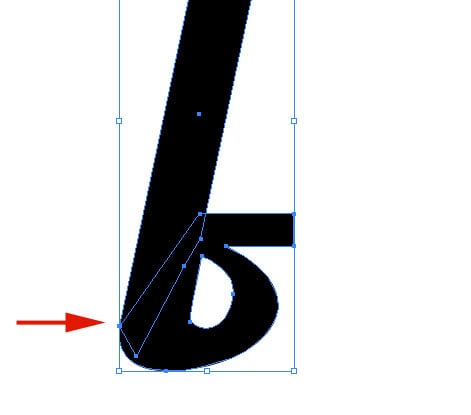
As you can see in the image above, I have two pieces of a lowercase “f” that I want to merge together with pathfinder. Below I have the two pieces lined up where I want them, and If I simply use pathfinder now and merge them, I will get more than one point on the bottom left curve, where the arrow is. I want to have a nice clean curve there, so I'm going to use the “Average” function.
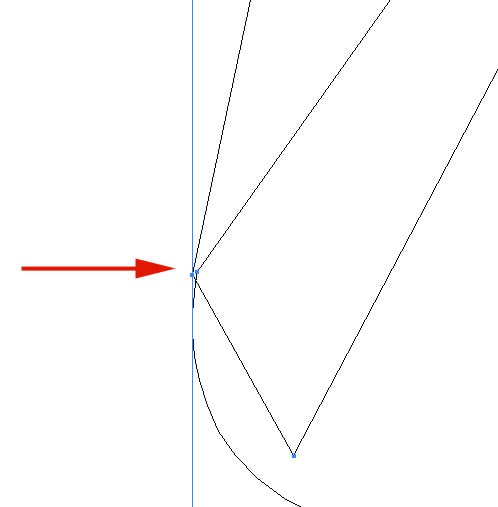
As you can see here, in wireframe mode zoomed way in, the 2 points are not exactly lined up.
Step 1:
As pictured above, use the Direct Select Tool (white arrow) and select the 2 points you want to align.
Step 2:
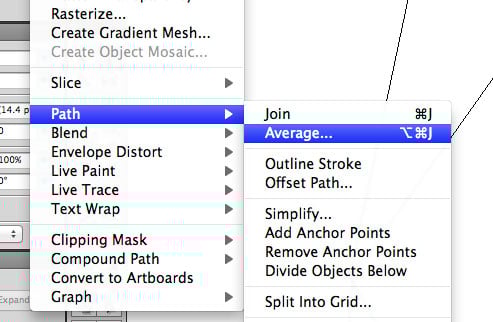
Go to Object > Path > Average, and select “both,” then hit ok.
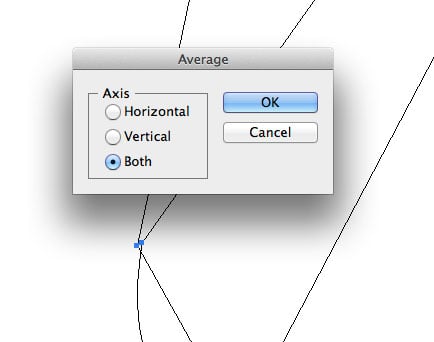
And that's it. Now your points are in exactly the same x,y coordinates, so when you use pathfinder, the result is only a single point, not two.


Now I have my nice clean path outline to work with!

