
How to Draw Smooth Lines in Illustrator with the Smooth Tool

This page may contain links from our sponsors. Here’s how we make money.
This may seem trivial to a good many of you, but when I first started using Adobe Illustrator, it seemed to present itself as a serious challenge. I want to show you a couple different ways to make your line work a little smoother in Illustrator. With a couple easy tool settings, you'll be making smooth lines in seconds, baby!
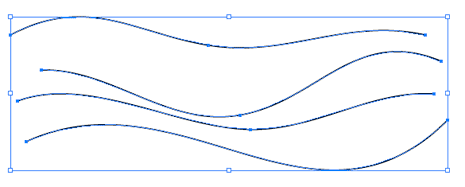
Illustrator can be a very intimidating program because of the complexity and wide variety of tools. I know that smooth lines are something we all either need or want at some point or another. At first, I started using the handlebars to try my best to smooth out my paths.
Little did I know, I was wasting a lot of valuable time when all I needed to do was get a little more familiar with Illustrator's tool options. I'll show you two really easy ways to smooth out a line or curve.
What do you mean by smooth lines? Smooth lines do not have sudden breaks, turns and roughness. There is no sudden change in the speed or direction of those lines. To look like a professional graphic designer, you must know all the settings and customization that will help you design perfectly smooth lines. This quick guide will help!
1. Smooth Edges with the Pencil and Paintbrush Tool Settings
Double Click on the Pencil tool in the tools panel, and you will get the Pencil tool preferences pane. From here you can adjust the amount of smoothness you wish to achieve. I always drag both sliders to the maximum setting when I'm going for smooth. The smoothness option is pretty strait-forward, but the higher the fidelity, the fewer anchor points Illustrator will create. (correct me if I'm wrong about that).
Now click OK and see how smooth you can go. No steady hand necessary. The Paintbrush Tool has the same options, for those of you who like to use the Paintbrush tool instead of the Pencil.

2. Use the Smooth Tool in Illustrator
The second option is to use the Smooth Tool in Illustrator. Click and hold on the Pencil tool to reveal the Smooth tool. Just like the Pencil and Paintbrush, the Smooth tool has fidelity and smoothing options of its own. Just double-click on it to open the Smooth tool preference pane.

You can play around with these settings to get the right amount of smoothing for your liking, but the thing to remember is that the Smooth tool is a great way to smooth out an edge or path that you've already created. I'll show you how it works.
Draw or scribble a rough path with the pencil (or Paintbrush). Now, with your path still selected, select the Smooth tool, click and drag across your selected path to smooth it out.

Repeat until you reach an acceptable result:


Ok, that looks pretty smooth. Done. Notice that the Smooth tool also reduces the number of anchor points in your path.

I was surprised at how long it took me to actually start using these settings, but they can be a serious help and a significant time saver. You have to sacrifice a little accuracy, but if you aren't going for accuracy, the smooth tool and tool options for drawing can come in handy for making those gorgeous, serene, completely smooth lines in Illustrator. I hope it saves you a little bit of time here and there.
One should practice with a different set of customization to draw a perfectly straight line of his own choice. There is a separate tool available to draw a smooth line; thus you can practice with different settings and customization.
Smooth lines appear to be smooth as long as all the settings and customization are set right. This tutorial presents the customization and settings that are necessary for creating perfectly smooth lines so that you can produce a neat and clear image with smooth edges. The pencil and paintbrush tools are popular, and they're used to draw smooth lines.
