Get More-Natural Adjustments with the Illustrator “Reshape” Tool

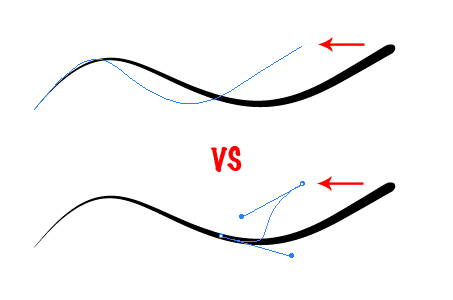
A hidden gem in my opinion, Illustrator’s “Reshape” tool can come in very handy in a variety of situations. In a nutshell, the Reshape tool allows you to drag a single point on a path and it tries to retain the overall shape of the entire path, while you only move the one anchor point. What? I’ll explain below.

The Illustrator Reshape Tool

1: Direct Select Tool Adjustment

Start off with a simple path like below. I used the pencil tool to make a simple curved line, and applied a brush stroke. I’ll start by showing you an adjustment with the Direct Select tool (white arrow) as a contrast/comparison.

The Illustrator Reshape Tool

Now lets say you want to adjust this shape, and you use the Direct Select tool (white arrow) and move the far right point where you want it like this:

The Illustrator Reshape Tool

And this is what you get. Ok, but you still might have to manually adjust the rest of the points to get what you’re looking for.

The Illustrator Reshape Tool

2: Reshape Tool Adjustment

Start with the same simple path (or a new one).

The Illustrator Reshape Tool

Now select your shape with the Selection tool (black arrow), and then select the Reshape tool.

Important: You need to have all points in your shape selected before you move the single point. If you only select a single anchor point before you use the Reshape tool, it will only adjust the path up to the next non-selected point (like the example above)

The Illustrator Reshape Tool

Ok, with all points on your path highlighted, move the far-right point with the Reshape tool, and you’ll notice a more natural adjustment.

The Illustrator Reshape Tool

In my opinion, this is a much more pleasing result:

The Illustrator Reshape Tool

One More Thing:

If you hold Option (Alt PC) while you drag with the Reshape tool, you can easily make copies of your shape that might prove to be useful. (almost like a manual blend tool).

The Illustrator Reshape Tool

This entry was posted on Wednesday, November 28th, 2007 at 9:32 am and is filed under Illustrator. You can follow any responses to this entry through the RSS 2.0 feed. You can leave a response, or trackback from your own site.
Stumble It
Add to Del.icio.us

64 Responses to “Get More-Natural Adjustments with the Illustrator “Reshape” Tool”

  1. Very handy, thanks for the tip!

  2. Yes indeed!!! Very handy!! Thanks a lot..

  3. Nice one!

  4. Very useful! I’m always struggling over reshaping objects and this just made my life simpler! Thanks BittBox!

    Wow, that sounded like a cheesy info-mercial testimonial… sorry, it was sincere!

  5. Again a tutorial I didn’t even know I was missing it.

    Thanx for making my life easier

  6. WOW. That is ridiculously useful.

  7. why didnt I know about this before? Theres just to much to learn!

  8. hey thanks, this one is supercool

  9. never even knew that tool existed. many thanks

  10. Great tip! To think that tool’s been sitting up there the whole time while I’ve been manually reshaping paths is *really* annoying. haha.

  11. hey man what kinda brush did you use to taper the stroke like that?

  12. @Shahin,

    It’s from one of my free Illustrator brush sets here:
    Link

    ~Bitt

  13. Nice! Thanks for all the great bitts you put out here. I learn something new everyday!

  14. This would actually be really useful to me on closed paths. (I often need to enlarge or shrink a single limb on a drawing of an animal for example). That is very helpful! Now I can shrink an individual area on a complicated shape simply by selecting the points I want and using the tool, instead of dragging each point manually. Can’t believe I didn’t know that was there! Thanks Bitt!

  15. This is the niftiest thing I’ve seen in illustrator in a long time! Thank you!

  16. I love this tool….deff. a hidden gem. Bit do you check the bittbox Flikr group often I have a pretty good blog request posted……….dont know if you know to muck about it yet, its a new CS3 feature….

  17. Holy moley, he’s back with a vengeance, less than a week after moving!
    Thanks BB.

  18. Great tip. Makes me want to shake a leg.

    Thanks Bitt!

  19. I knew this tool had to be somewhere.

  20. Thanks man!!

    That was a really good one!

  21. Thanks, a real good tip. I always fight with those anchors :)

  22. Very usefull !!! Thx

  23. Thanks for the tip! Very useful. I was wondering (since illustrator is still a bit tricky to me) if with the pen tool there is a function that, like in photoshop, simulates pen pressure thickness. Can’t find it. I know you can with the brush but wit the pen?? thanks

  24. Very useful. thxalot.

  25. Wonderful tip. Thanks!

  26. Hey, you got a link from Smashing’s blog. Congrats!

  27. Your blog has to be one of the most useful and fun to read out there. You make my life easier and inspire me every time I peruse your site. Thank you!

  28. thanks for the wonderful tip!

  29. Very useful. Thank you for investigating bits of illustrator that I as a busy designer haven’t time to do, keep it up.

  30. Fabtastic!

  31. It’s funny how you can use a program for so long and feel pretty proficient in it, and then all of a sudden find out something—some piece of functionality—that becomes indispensable. Thanks for the tip.

  32. Dude – that’s an awesome tip. Just when I think I know everything there is to know about illustrator you hit me with a hidden gem. Why didn’t I find this sooner???!!!! Thanks again, This will be so very useful.

  33. Thanks a bundle! Real handy.

  34. It’s feeling easy with illustrator compare to corel draw

  35. Nice one… A trick I can use every day… Thanx! ;)

  36. Pretty handy tool, but wish it worked on closed paths as well.

  37. [...] quick Adobe Illustrator tip over at design blog BittBox, this time a quick overview on using the Reshape tool. In short, the Reshape tool helps keep the overall ‘feel’ of a vector path without [...]

  38. i will have to give this oen a try on Ilustrator, but from the feedback it sounds like its pretty nifty so thanks for the tip

  39. Thanks a lot for the illustrator tutorial

  40. thanks for this tip. as a freehand to illustrator switcher every hint is appreciated.

  41. Hey, i can’t see the images in this tut, could you check them??

    im very visual sometimes

    beWell
    ThanksNadvance

  42. Yes, the images are not showing up. Could you please verify?

    TIA.

  43. arigatou! thanks a lot! that is very usefull

  44. Great work. You’ve inspired me greatly. I’m glad you’ve come up with yet another amazing tutorial.

  45. I think you are wonderful…you have given me such great tips and ideas with this site…
    Random question: what is the font that you used for your tutorial (the writing in red)??

    Thanks so much!

  46. @sydney,

    It’s called Marker Felt.

    ~Bitt

  47. its just me

    this was horribly useless.

  48. James E. Talmage

    > this was horribly useless.

    That’s because (not meaning to rain on someone else’s parade…) the example shown poorly demonstrates what the Reshape Tool does.

    Using the Reshape Tool as shown is almost equivalent to simply scaling the path horizontally.

    To understand the difference between the Reshape Tool and ordinary scaling, continue to push the selected endpoint horizontally. You’ll see that the path becomes a loop, not just a more horizontally-compressed ess curve.

    For a much clearer example of what the Reshape Tool is all about, do not start with a path in which the anchorPoints are already arranged sequentially along the path in the direction of the move.

    For example:

    1. Spiral Tool: Draw a spiral. Leave it selected.

    2. Reshape Tool: Drag the outermost endpoint of the spiral horizontally away from the coil center.

    You will see that the coils of the spiral stretch out, as if you are stretching a spring. (In fact, drawing springs is something the Reshape Tool is quite useful for.)

    The coil example shows that the Reshape Tool does something radically different from anything that can be done with ordinary scale transformations.

    Using the Scale Tool or other scaling moves affects selected anchorpoints and handles by amounts which increase with their straight-line distance from the center of transformation.

    Using the Reshape tool affects selected anchorPoints and handles by amounts which decrease with their order-distance *along the path* from the anchorPoint(s) being moved.

    > It’s feeling easy with illustrator compare to corel draw

    This feature is very similar to CorelDraw’s Elastic Mode for the Shape Tool.

    JET

  49. Many thanks for this trick

  50. Thank you body

  51. Thanks For article

  52. [...] – Get More-Natural Adjustments with the Illustrator “Reshape” Tool [...]

  53. wow, thank you

  54. wow, thank you!!!!

  55. Oh my gosh! You have no idea how much I have needed this tip in the past! Thnak you!

  56. Ah, so helpful!! Thanks!!!

  57. [...] Tutorial Link [...]

  58. Sweet. You have the most useful tutorials on the web. Thanks!!!

  59. cool

  60. Wow, this is COOL.

  61. Thx a lot mate…

  62. WOW. I Can’t even begin to tell you how much this helped me out. I was trying to figure out how to adjust, and create an asymetric spiral and this helps allot.

  63. Very, very useful Nice work.

  64. Excellent! I’m only 2 years late in finding this little gem, but it sure is pretty.

LEAVE A COMMENT


Message: