Fun with Illustrator’s Lesser Known, Yet Powerful Tools

Believe it or not, Illustrator is capable of some amazing effects similar to those in Photoshop, all waiting at the tip of your finger in the Tools palette. These are NOT filters, but some lesser known Basic Illustrator Tools that , if harnessed right, can transform a single path into a work of art. I’ll show you some simple examples, but I invite you to explore these really, really easy tools a little further using your imagination.

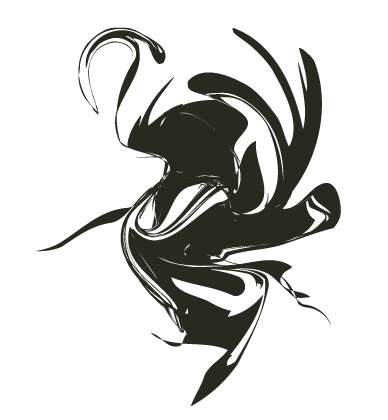
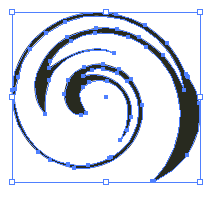
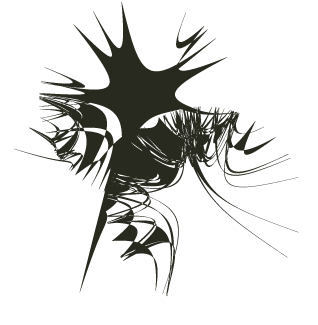
These effects may or may not be new to you, but I’ve been using Illustrator for over half a decade, and I felt like a kid at a candy store once I started playing around with them! Here is an example of what you can do in a matter of seconds (literally):

Experimenting with Illustrator Tools

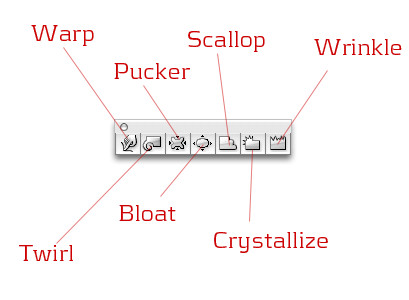
After reading the tutorial on Ndesign Studio about Abstract lines, and after I posted this story, I started digging deeper into Illustrator’s (CS) Basic Tools palette. I discovered that there are a number of extremely powerful tools right under my nose that I’ve never taken advantage of. These tools include: Warp, Twirl, Bloat, Crystallize, Wrinkle, Scallop, and Pucker. The reason I find these tools so amazing is the fact that they not only look cool, and can be useful for a number of different things, they completely transform your paths into intricate, detailed shapes that would otherwise take days, if not weeks to achieve if you tried to draw them manually. And to top things off, guess what? These effects are completely vector WITHOUT a single filter! They actually manipulate the PATH itself, instead of just applying an appearance.

Examples:

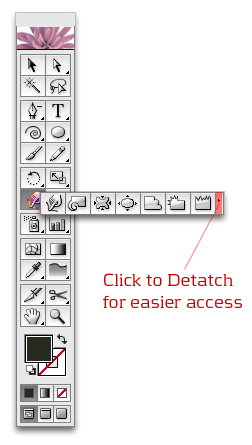
I listed 7 tools above and they can all be found if you click and hold on the Warp tool. If you want you can detatch these tools as their own mini-palette by clicking on the little arrow at the end.
Experimenting with Illustrator Tools 4

Here is a quick visual aid:

Experimenting with Illustrator Tools 5

1. The Warp Tool

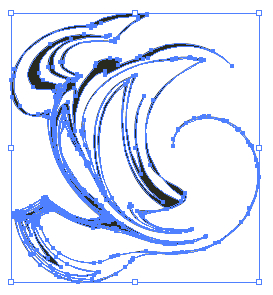
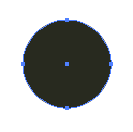
In these 3 examples, I will always start off with the same circle path, shown below at actual size. That’s it, just a circle. Everything you see past this point (including the design above) was created from a single circle path in seconds, using these Illustrator tools. Here we go:
Experimenting with Illustrator Tools 6

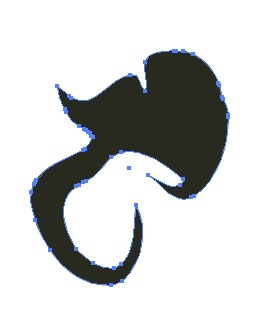
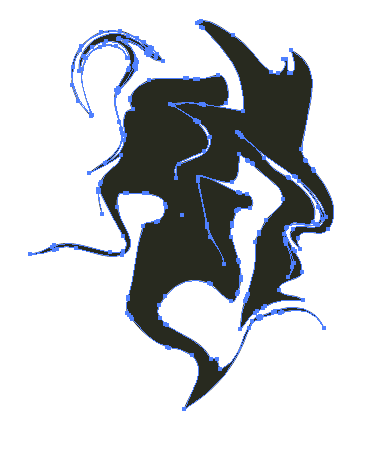
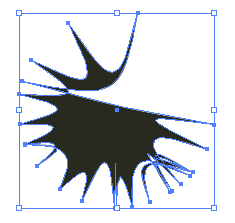
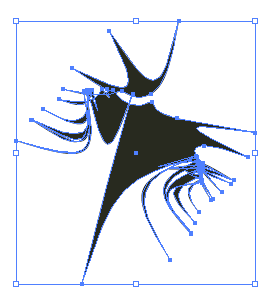
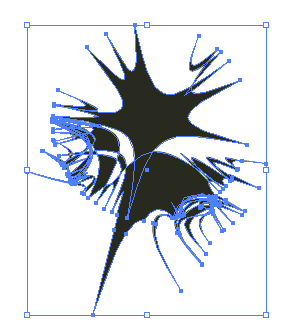
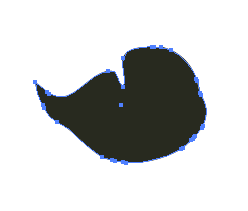
After you create a simple shape on the artboard, select the Warp Tool, and go to town on it. Here is what I did in a matter of seconds:

Experimenting with Illustrator Tools 6
Experimenting with Illustrator Tools 8
Experimenting with Illustrator Tools 9
Experimenting with Illustrator Tools 10
Experimenting with Illustrator Tools 11
Experimenting with Illustrator Tools 12
Experimenting with Illustrator Tools 13

Warp Tool Options:

Play around with these to see what you can get as a result. Tip: while using any of these tools, hold down Option + Shift (Mac) or Alt +Shift (PC) hold and drag to resize the tool! Also, to access the options panel, double click on the tool icon in the toolbar.
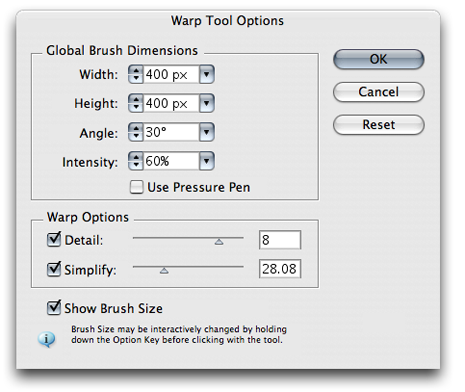
Experimenting with Illustrator Tools 28

2. The Twirl tool:

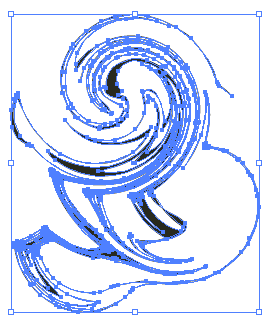
Again, starting off with a single circle path and using the Twirl tool, here is an example of what you can do with a few seconds of experimenting:
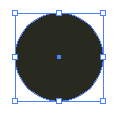
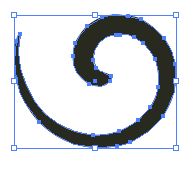
Experimenting with Illustrator Tools 15
Experimenting with Illustrator Tools 16
Experimenting with Illustrator Tools 17
Experimenting with Illustrator Tools 18
Experimenting with Illustrator Tools 19
Experimenting with Illustrator Tools 20

Twirl Tool options:

Tip: The “Twirl Rate” setting controls the direction of the twirl (clockwise, counter-clockwise). A positive Twirl Rate will give you a counter-clockwise twirl. A negative Twirl Rate will give you a clockwise twirl.
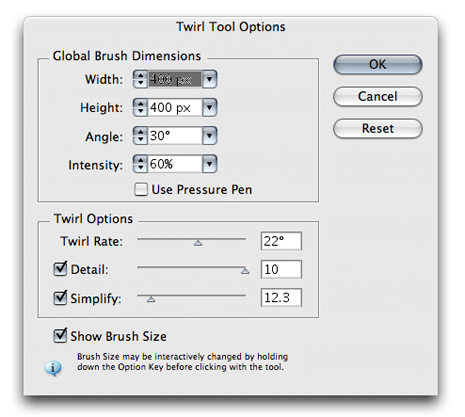
Experimenting with Illustrator Tools 29

The Crystallize Tool:

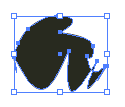
Again, starting off with a circle. . .
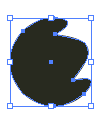
Experimenting with Illustrator Tools 6
Experimenting with Illustrator Tools 22
Experimenting with Illustrator Tools 23
Experimenting with Illustrator Tools 24
Experimenting with Illustrator Tools 25
Experimenting with Illustrator Tools 26
Experimenting with Illustrator Tools 27

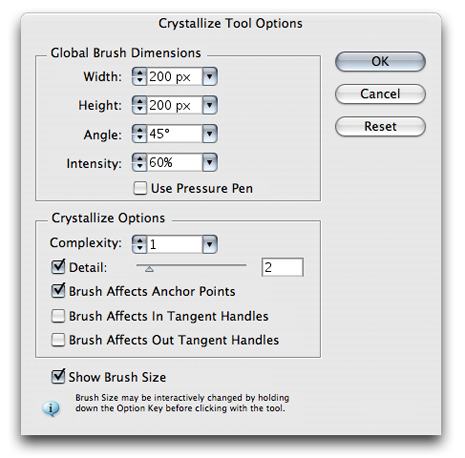
Crystallize Tool Options:

Experimenting with Illustrator Tools 21

Tips for Exploring this on your own:

1. Experiment with gradient fills to see what kind of effects you can get.

2. Try different stroke sizes and/or brush strokes on your shape before you distort it and see what happens.

3. Experiment with opacity and layering. Duplicate shapes distort, duplicate, distort.

The possibilities are literally endless, but be careful how complex you get. You can easily crash your machine with these complex paths! I hope this inspired you, at least a little bitt :)

Related Posts:

  1. How to make Smooth Lines in Illustrator
  2. The Power (and ease) of Patterns in Illustrator
  3. Get More-Natural Adjustments with the Illustrator “Reshape” Tool
  4. Fun with Illustrator’s Blend Tool
  5. Illustrator: The Tilde Trick
  6. Make a Perfect Triangle Path in Illustrator

This entry was posted on Thursday, March 8th, 2007 at 11:17 pm and is filed under Illustrator. You can follow any responses to this entry through the RSS 2.0 feed. You can leave a response, or trackback from your own site.
Stumble It
Add to Del.icio.us

Did you like this post?

Digging and sharing is a great way to say thanks!

21 Responses to “Fun with Illustrator’s Lesser Known, Yet Powerful Tools”

  1. Great reminder! These tools are seldom used on my day to day work!
    Though it always bugged me that you had to double click the tool to get into the options…

    Great Tip!!

  2. fantastic tutorial. thanks for share ;)

  3. thanx! …weeked will be curly ;-)

  4. Great tool….It helps to let your imagination work….

  5. [...] da kompleks ?ekiller b?yle [...]

  6. I just enjoy playing with those things… they’re good for a little break when you need it.

  7. [...] Blog: BittBox Latest Post: Fun with Illustrators powerful Tools [...]

  8. the swirl tool is one of my favorites.

  9. ArchMedia Said...

    great tips, it’s funny how the tools that may seem foolish and childish at times are sometimes some of the strongest at times. I’ve often used the swirl tool, but i think the crystallize one will be one to work with too in an upcoming project or two :D

    nice work, keep it up!

  10. WOW!

    Nice abstract stuff that might actually be sellable to the right buyer. None the less, at least it looks great an inspires the imagination.

    Awesome!

  11. wow, simply wow, how do you come up with all these great ideas? When I am using illustrator, it is like a 10year old shooting ducks not knowing what to do!
    Thanks for these insights!

  12. Sadly thats all I’ve ever been able to do in illustrator! Its so frustrating knowing photoshop well (at least I like to think) and then getting confused by the simple things in illustrator!

  13. really thankful for your sharing, it’s really really reeeeeeeeeeeally helpful.

  14. Ah, yes! Used the Wrinkle tool just the other day. Needed a a banner for text that looked ragged.

    Drew a red rectangle. Ran around the edges a bit with the Wrinkle tool, an viola! I had a very suitable ragged red banner that actually looked a bit like blood which added nicely to the desired affect.

  15. Alberto Said...

    WOW SIMPLE WAY TO MAKE PRETTY COOL SHIT. THANK U :D

  16. NIce job and nice site man keep it up. and thanks

  17. Great toll and greate article. Thanks.

  18. really cool using this tools...keep the good word spreading man Said...

    keep the good job blasting…u cool man and i am crazy about ur designs..

    Nice site..hope we communicate in person…mickey55gh@yahoo.com ma mail ad.

    have some designs for you to criticize…

    hope to hear from u

  19. really nice tips
    thx

  20. mystrioushawk Said...

    thanks for the tutorials. it’s easy to understand the tools better.

LEAVE A COMMENT


Message: