Easy Illustrator Trick: Oversized Stroke

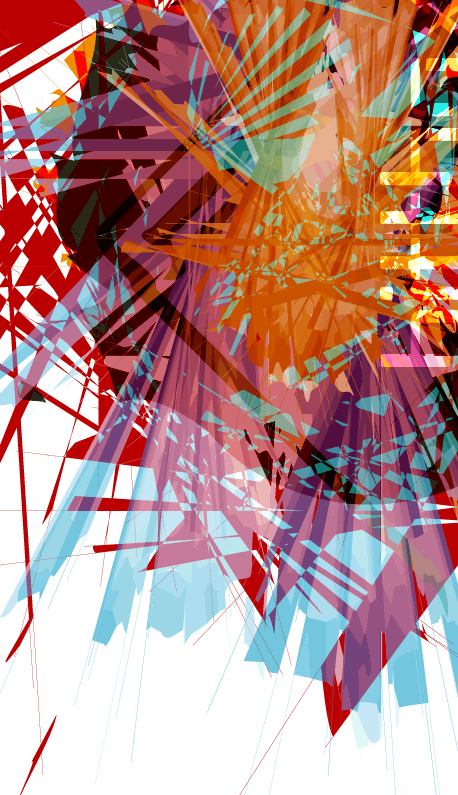
Illustrator comes standard with some default brushes. Most of us probably use these brushes as they were intended to be used, but what happens if you push the limits of stroke size? You get a really easy way to create some cool abstract effects in Illustrator. Check out the example below, made with very simple shapes. The complexity is created by taking the stroke way beyond normal with an artistic brush stroke from the brushes palette.

Easy Illustrator Trick: Oversized Stroke

Overview/Explanation:

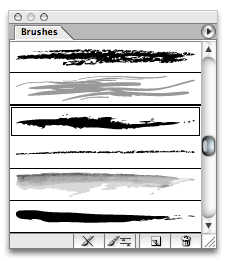
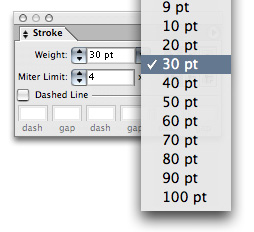
The example you see above contains a few very simple shapes I created in Illustrator (a star, a spiral, a square, etc). Then I applied an art brush to the stroke, and took the stroke up to something huge like 30pt. This makes all of the imperfections in the brush stroke you choose go nuts. All of the brush strokes used in the example are default brushes that ship with every copy of illustrator (10+) – Screenshot below. Not sure about anything earlier than 10. (anybody?)
Easy Illustrator Trick: Oversized Stroke

Try It Yourself:

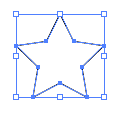
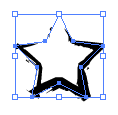
Start with a simple shape, like a star or a square like below (actual size).
Easy Illustrator Trick: Oversized Stroke

Now, make sure there is no fill, and pick an artistic brush stroke to apply to the stroke. (The Illustrator Brush Library I used is “Artistic_Ink” – pictured below)
Easy Illustrator Trick: Oversized Stroke

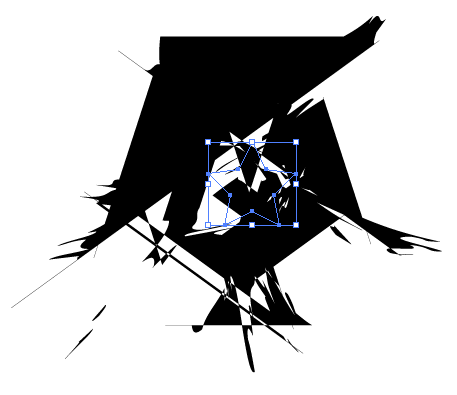
Now take the stroke to a big number, like 30pt and see what you get.
Easy Illustrator Trick: Oversized Stroke

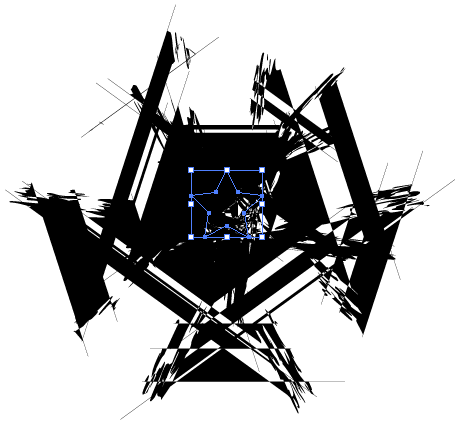
Here is that same shape, with a different brush, still 30pt stroke:
Easy Illustrator Trick: Oversized Stroke

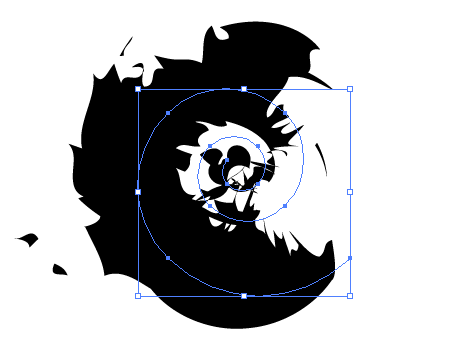
Here is a simple spiral with the same stroke:
Easy Illustrator Trick: Oversized Stroke

Tips for Exploring this on your own:

The key is to experiment. This trick is pretty much trial and error folks, so you will have to play with both your shapes and the stroke settings to get what you are looking for. Here are a few more pointers:

1. Keep the shapes relatively small. This can get very complex, very quick so watch out for bogging down your machine. The stroke does all of the work anyway, so the shapes can be simple, and small.

2. This tends to work better on closed shapes. In other words, if you use a shape tool as opposed to the pencil tool, you will get better results. If you feel the need to make a custom shape, try and close it off. Otherwise, you might get big blocks of solid color.

3. Keep your shapes simple, let the stroke do the work. Even shapes as simple as a square will do fine. Make a small generic shape and take your stroke to 100pt and you will see what I mean.

4. Adjust your shape after you apply the stroke. If you are like me you are used to holding down shift to constrain your shapes. With this trick even the most subtle adjustment to your shape can render wildly different results. For example, try comparing your results on a circle compared to an oval.

5. Make your own brushes to use for this effect. Draw a bunch of scribbles and make a custom art brush out of the scribbles. Then use your custom brush on a simple shape and take the stroke way up to make your new stroke go crazy. (more custom than using the default Illustrator brushes, which means your design will be one-of-a-kind!)

This entry was posted on Friday, April 6th, 2007 at 6:04 pm and is filed under Illustrator. You can follow any responses to this entry through the RSS 2.0 feed. You can leave a response, or trackback from your own site.
Stumble It
Add to Del.icio.us

31 Responses to “Easy Illustrator Trick: Oversized Stroke”

  1. i did this, but more simplistic, in my retarded web page design class, i made a circle/random path in fireworks, then i chose a random font(works good with a real grungy font) and then just made the font huge, it looks good behind a main box, and just barly showing, try it out bittbox if needed i can email you a “prototype” of it. email me if you want it

  2. Great tip for creating abstract designs!

    Thanks!

  3. This is great, and I can’t wait to try it out with styles or whatever in Illustrator CS3

    Which is here , with the password skinsis

  4. ONce again, you make this look easy. Thanks for showing me what is possible. Can you do some logo tutorails? That is the hardest for me the tech side of design.

  5. [...] BittBox nos muestras una forma sencilla de armar figuras abstractas en Illustrator. B?sicamente, lo ?nico que hay que hacer es utilizar figuras cerradas como la estrella, el cuadrado, el c?rculo, etc. E ir jugando con el grosor de los bordes (stroke), y seleccionar alguna brocha art?stica. Algo bastante sencillo, que te podr?a dar muy buenos resultados para tus artes. Posts Relacionados Adobe Flash Pro CS3Video Tour de Adobe Flash CS3Logos en la webAdobe no se actualizar? a VistaPatternIm?genes Vectorizadas y Mapa de Bits?RGB o CMYK?Siguiendo Con Las Reglas De Composici?n [...]

  6. tryed this @ home. I was totally shocked that there are so much options i hadnt found before :).
    thank you 1000 times for that post.

    really nice artwork

  7. No Problem, Glad to Help.

    ~BittBox

  8. Strokes are a great band as well as an awsome tool……….my whole website and logo are based around the stroke…….(dbdesignco.com)…..another great blog

  9. oh, by the way….my website is kinda old and im working on getting some more and newer work up on it……..

  10. [...] Easy Illustrator Trick: Oversized Stroke | BittBox Illustrator comes standard with some default brushes. Most of us probably use these brushes as they were intended to be used, but what happens if you push the limits of stroke size? You get a really easy way to create some cool abstract effects in Illustr (tags: adobe graphics resources inspiration illustrator tips design tutorial) [...]

  11. [...] Mire (lehet) j? egy ?t?lm?retezett? k?rvonal? [...]

  12. Thanks! Great Stuff.

  13. Awesome trick. I once figured this out too, and applied it to the Coca Cola logo.
    The endresult was amazing, and I just did that without even wanting to do it really.
    Same with this tutorial, you show some great other variations. I really like this tut.
    Keep up the good work!

    BTW: here is the coca cola logo with this trick applied if you want to see it:
    http://145.37.208.96/200718/Website_herkansing/afbeeldingen/afbeeldingen/abstract.htm

  14. I appreciate the hard work that you put into every single tutorial that you have here. As a professional web designer I love the free brushes as my library can never have enough.

    I do think, however, that it would be great to get together with you and build an actual database with the free stuff that you have and allow others to add to it. Make it truly a “bittbox” – kinda like a tool box. Anyways keep it up and if you need any help with anything I am sure that you can enlist more than enough people to help in your quest of blog supremacy (I know that sounds a little over the top – but I was just feeling a little journalistic today.)


    Greg

  15. Hi That’s a good stuff but how i put gradient color ? sorry i still newbie for this software…

  16. Luc,

    Go to Object > Expand. Then use a gradient fill.

    ~BittBox

  17. wow, this can make some really neat effects!

  18. what can i say?…this is the dopest step by step feature in all tutorials, anywhere…respect

  19. [...] Easy Illustrator Trick: Oversized Stroke | BittBox (tags: illustrator tutorial) [...]

  20. Abhijit V. Chaore

    Hi dude..though it is a very simple tutorial its power lies in its simplicity. Indeed by playing a little in this fashion we can create extremely complex good looking designs. I had this idea in my mind since a long but you put it first online…so congrats man and keep it up….thanks for the tutorial….

  21. Very Cool….Thanks

  22. thnx so nice trick….

  23. I’m wowed…seriously. So simple yet so cool.

  24. good tutorial……

  25. wow.. the best tutorial! thanks man such a blessing to have learned this trick. ^^

  26. Hey that was gr8!! I had no clue where this was heading but after those increments it surely satisfied my eyes..

    that was great..thanx once again!!

  27. what a simple method, but easily overlooked. thanks.

  28. This is WICKED!!! You rock!

  29. Awesome Jay!

  30. [...] Easy Illustrator Trick: Oversized Stroke [...]

  31. [...] completely different logo for the upcoming Espressiva. Made in Illustrator using this tutorial for the design of the [...]

LEAVE A COMMENT


Message: