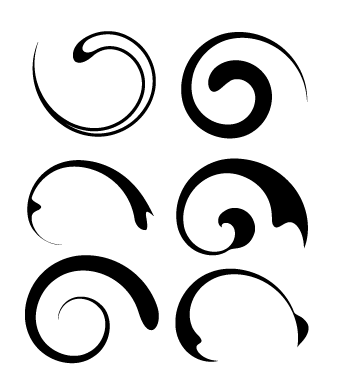
28 Free Illustrator Brushes for making Swooshes and Swirls
This is a brush set meant for making your own custom swoosh, swirl and curl designs. I have a tutorial on exactly how that process works that you can read here. This isn’t the only way to make swooshes, but it should help you get started, to say the least. I’m continually fascinated as to how confusing vector swoosh creation can be to most people. Along with this brush library, and a quick tutorial read, you should be well on your way to start making your own swooshes in 100% vector format, relatively easily.
The reason I created this brush set is so that (hopefully) it will make it easier for you to try and understand swoosh making and get inspired to set up your own unique brushes to produce some beautiful swooshes and curls on your own. Practice makes perfect in most cases, but these should help you along your way.

The possibilities are endless, but here are a few examples of these brushes when applied to a simple spiral path:

Update: Brush Set saved with Tint Colorization Method to solve issues with changing the color of your strokes and fills.
Update: Vector source file for earlier Illustrator versions, and SVG Format for Inkscape users.
Installation:
1. Unzip the file.
2. Copy the file into your Adobe Illustrator/Presets/Brushes folder:
3. Restart Illustrator if you already had it open.

Running a successful online business demands complete knowledge about the search engine optimization as well as different hosting plans. For example if some one is running a site of Kodak easyshare digital camera then a budget hosting plan as well as the affordable high speed internet connection helps a lot to meet the expenses. While one can find the Linux hosting plans are being considered more secure and affordable among others. Leading web hosts have also been observed educating their employees through online Microsoft training courses in order to improve their services.
Related Posts:
- Illustrator: How to Make Custom Swooshes, Swirls, and Curls
- Free Vector Swooshes, and Fancy Corner Designs.
- BittBox Featured in Computer Arts
- 35 Free Abstract Illustrator Brushes
- 30 Illustrator Pattern Brushes for Making Flowers and Circular Designs
- Free Illustrator Brushes: Ink/Watercolor


Very cool- I can’t wait to play with them. Thanks again!
very generous, man! thanks!
Very, Very cool. Many thanks!
Thank you very much
I’m going to enjoy this!
I LOVE YOU … THANKS FOR ALL YOUR EFFORTS
Thanks man. lots of great freebies on this site, and this is one im certainly gonna download.
Cheers!
Your site is fantastic! Thanks for all the tips, and these great brushes.
Thanks a lot!
Whoaa.. This is a gold mine!
Is this a hint tward you working on a Paisly pattern?
Great work on these! Thanks again!
-Gautch
[...] 28 Free Illustrator Brushes for making Swooshes and Swirls | BittBox Sharing Is Good. These icons link to social bookmarking sites where readers can share and discover new web pages. [...]
I worry - you do have a job, right?
the tutorial was great and the brushes look wonderful! only problem is that I use AI 10 and can’t open the brushes. :-(
Sorry Bittbox. I didn’t know that posting about your work and including a picture from your site would interfere with your bandwith. I will not do it again.
Sorry again.
I didn’t mean to mess with your site.
Lawton
oh very cool! Thanks man. I was struggling on how to futher add onto the original tutorial you had about the swirls. I was unsure of other paths i could take with this tip. seeing you provided here will definately get my gears rolling. thanks!!!
I have taken off the photos of your work. Please, again accept my apologies.
Thanks again for your fantastic work and tutorials. I was just trying to show my audience these.
Thanks
Lawton
oh comonnnnnnnnn .. why did it have to go offline when I wanted to download?
put it back up man .. comonnn
Can anyone of the people who have already downloaded it put it up? Would that be ok?
Nabeel, you are dumb cocksucker.
Good stuff! Do you make all these resources yourself?
Andy
@Blogoculars
Yes, I make everything from scratch. And I’ve only begun.
This blog is only 2 months old!
More to come on a regular basis.
Cheers,
~BittBox
[...] read more | digg story [...]
Sweet - thanks for the hook-up!
Gonna put these to use in some myspace layout designs….
Woo.
[...] Burada [...]
[...] Adobe’s Illustrator zu erzeugen. Arbeitserleichterung oder einfach nur Spielerei auf diesen Klick bei [...]
Maybe I’m just dumb. I love these, I’ve created some great things but I can’t seem to get the stroke to be any other color than black. Expanding the shape doesn’t give me the desired results either.
wicked
thank you for sharing
cheers
[...] 28 Free Illustrator Brushes for making Swooshes and Swirls [...]
Thanks very much for the brushes, they look wonderful!
@Rez
The easiest way that I know of to change the color of shapes created with brush strokes is to make the shape, apply the brush, then object > expand appearance. Select only the outline that is created (not the original path) and then click a color and it should change.
[...] to be seen). nerosunero shows the illustration work of Mario Sughi. Bitbox has a nice collection of 28 free Illustrator brushes. From Bucket to Binary, how they scan in a Corvette for a Gran Turismo video game. Check out these [...]
[...] 28 Free Illustrator Brushes for making Swooshes and Swirls [...]
While attempting to make my own brush, I think I solved the color problem. After you select New Art Brush and the Art Brush Options window pops up, you must go down to where it says Colorization Method and select Tints.
I had the same problem with not being able to change the color from black and I think this solves it.
I meant to add that since these brushes are already created, the only way I could figure out how to change their color (actually my boyfriend told me) was by going to the Brushes palette and clicking the button at the bottom with the picture of a brush and slider that says “Options of Selected Object” when you hover over it and select Colorization Method “Tints.” Unfortunately, you’d have to do this every time you wanted to adjust a brush stroke color, even if you’re making a new stroke with the same brush since they were created without the Tints Colorization Method. Or at least that’s what I understand.
I’ve updated the file to solve all of your color issues. Re-download and you should have no more problems.
~BittBox
Hi I was wanting to download the Illustrator Brushes but it seems that the link does not work anymore. It would be great if you could fix this as I really like the look of these brushes.
Thanks.
I wonder if you could release the strokes in svg format so we Inkscape users can also use them?
[...] Free Illustrator Brushes for making Swooshes and Swirls Great brushes if you use illustrator. (tags: brushes) [...]
Ah, crud, no worky in Illustrator 10. Well, seems like I’ll have no make my own.
@Reza
As far as I know, there is no way to save the brush library in SVG format. Check back, one thing I can do is post the source file in SVG format. Give me a little time to get home later and dig it up.
This will also work for anyone who uses Illustrator 10 or older.
~BittBox
[...] 28 pinceles para photoshop con ellos puedes hacer formas de espirales, rizos o como lo quieras llamar. [...]
Thanks man! Great job!
Thanks for SVGs. They’re awesome.
I use the Pattern Along Path Effect in Inkscape. I have been using it to make my own swirls. I suppose I could make these “brushes” myself, but yours are so nice and I’m too lazy. :)
Thanks a bunch.
Thanks for this set of brushes. They?re so nice!!! Great job.
[...] 28 Free Illustrator Brushes for making Swooshes and Swirls | BittBox [...]
[...] 28 Free Illustrator Brushes for making Swooshes and Swirls | BittBox (tags: illustrator brushes design graphics photoshop free tutorial) Add to: document.write(”Del.icio.us”) | Digg it | RawSugar | Slashdot | Y! MyWeb [...]
[...] 28 Free Illustrator Brushes for making Swooshes and Swirls | BittBox (tags: illustrator brushes design graphics photoshop free tutorial) [...]
Hey there! I was very excited to download these brushes, but it doesn’t work for me. We have CS2, and the brushes don’t show up in illustrator when placed in the brushes folder. Also, when I go to “other libraries” the file doesn’t even show up. Furthermore, when I try to open up the .ai file by itself, it’s completely blank.
Am I doing something wrong? Help? Thank you!
@Lonnie
Did you restart Illustrator? These brushes were made in CS, and I’m not sure why you would be having trouble using them in CS2. Anyone else having CS2 issues?
Also, the AI file isn’t a regular AI, it’s a brush library, so you won’t be able to “Open” it and edit it from Illustrator itself. (tht’s why the file doesn’t show up, like you said.
~BittBox
Yeah, I put it in the brushes folder before illustrator was open, and tried restarting it. And as I said, in the brushes window, I tried opening “other libraries” but the bittbox file wasn’t even showing up.
Hi Bittbox:
I downloaded your brushes to test them in Inkscape, but i don?t kown what folder i have to save them… Would you give some help please… Hugs.
@Claudya,
I don’t use inkScape, so I honestly can’t tell you. Anyone else?
~BittBox
thanks for perpetuating the worst dotcom logo cliche ever.
I’m sorry, I don’t think I mentioned the word “logo” at all, these are for drawing.
Mahalo for sharing this with everyone!
I can’t wait to try it out. :)
- Leialoha
GREAT COLLECTION, Thanks
Thanks for your sharing brushes:))
?zge.
Thank you so much :)
thank you so much. i love your skills and generosity.
Thanks a lot.
I was very excited to finally find a site that shows how to make those swirls in Illustrator! I’ve been looking for about a month, and up until then I actually did find files for Photoshop brushes, but unfortunately I only have the Elements version, so I was glad to finally find your site and all for free! I truly appreciate what you’re doing here and look forward to more! This will help me tremendously in customizing my artwork. Thanks again! =)
You are great!!! Great with the work and your heart. Thank you so much!!!
I use CS2, it work properly. Sorry I have no my own website to credit for you, But I do add your web to my favorites Website.
Awesome brushes, they gave me a lot of neat ideas I can’t wait to try. Thanks so much for sharing!
great stuff… thanks for putting us all on the right track…I’d been scratching my head about how to be productive with the grunge / swirl / swoosh / style images for a while (is this definitively called the Grunge style???? Kurt will be turning in his grave!! it’s become VERY mainstream here in Spain in the last couple of months)….I’d tried using a 30 year old set of “french curves” I had from the pre computer era with the tablet…(close!) … trial and error hand drawing (mindbending) …. and now this!!!
I use Freehand on a PC and I managed to import the AI file no problem…. converted the images into brushes one by one, from then on my workrate has gone up 1000%.
I owe you one!! Thanks!!
Good work! Thanks for this information!
This is all amazing stuff! Thanks Bittbox, you’re very generous! Your tutorials are amazing as well! I was trying to find a helpful tutorial, and your site was the first one that showed up, and it was perfect! Thanks.
I have one question though, I’ve tried making intricate swirls or flourishes in Illustrator using the pen tool, however I dont always get the perfect curves, even if I adjust the anchor points and their angles afterwards. Maybe I’m going about this the wrong way…any suggestions? Please and thank you!
you’re such a doll to post those :] any user restrictions tho? I’d like to use them in my piccies if that’s alright with you
[...] using these custom BITTBOX brushes for the illustrations that make up the animation. Published in: animation , mada3 by [...]
maddama,
Liscence and usage for BittBox Freebies
This is awesome, Great work . Thank you so much!!! bittbox
Thanks very much for sharing your brushes.I will try and make some of my own
and put them up here for all to use.
Once again many thanks.
Awesome, thanks!
Nice brushes. I jsut gotta hook up my Wacom Tablet and we are good to go. Keep up the great post!
thank’s, it’s very cool ^^;
thank you so much for all that you are doing on this website. I have been drooling over this type of illustration for months trying to figure out how to do it. This post alone has taught me a valuable lesson about brushes and how useful they are. Thank you again!
awsome! arigatou! thanks a lot!
Thanks, thanks, thanks a lot ^^!
I used them here -> http://ginny-n.deviantart.com/art/Lost-Star-Technologies-Logo-62730614
thank you ,thank you very much,, thank’s for your brush
you are great you saved my soul tonight! big THANKS
THANKS.
Thank YOu very very muck
pretty work, the tutorial of how to made swirls solves me a lot of problems, thanks man
Nice…
WOW, THANK U; REALLY THANK U, ILLUSTRATOR IS MY FAVORITE TOY…
You have made my life a lot easier. Thank You!!!
that’s a fantastic brushes over here,
WOW U BRUSHES CREM DE LA CREMP MAN!
nice one…
Thank you very much for this brushes … I just learn to use Illustrator and this is really nice set for me…
best regards from Croatia….
Great stuff as always…
Just downloaded the file and am going to try them
out immediately. I was looking to get some design
ideas and I think this will help tremendously. Thanks
so much.
thank you for these, new to this program, and this is a wonderful start.
thank you much. came across your tutorial on the web. you helped me a lot… thanks again
I love the swirl brushes I’m seeing people using…. but I have Microsoft Digital 9, is there anything that works with that?
i love u fuck me
very very useful ! you dont see such tut so often. THANKS !
Thanks for the very nice tut and brushes that you published, i have a learn a lot in very short time now!
[...] 28 Free Illustrator Brushes for making Swooshes and Swirls | BittBox Bitbox has a nice collection of 28 free Illustrator brushes. From Bucket to Binary, how they scan in a Corvette for a Gran Turismo video game. … [...]
Thanks for the brushes, I really can use them, already have!
Thank you so much!!!
The brushes are so great saved me tons of work !!!
Hey, thanks. This got me started on a whole new path to making my own brushes and swirls. Once you know the basic shapes that generally will and won’t work, the possibilities are really endless. Making your own is very easy!
Also, once you have made a cool shape with your brushes, try “Flatten Transparency” and apply yet another brush to it. Sometimes you can get some surprising effects, especially when you experiment with stroke size.
so i dont have illustrator, i have corel, which normally isnt a problem. i can use abrviewer to change illustrator brushes into pngs, and then turn them into brushes in photo paint, but how can i use these? please help!! thanks!
Awesome … very helpful. Thank you so much!
thanks - good work
okulöncesi
Thanks Bitbox. Thank you very much…!!!
Very Kind of you , Thanks.
Thank you for sharing. This is great!
two thumbs up! exellent job!
nice brushes, thanx =)
thankings !!!
Used them to make a futuristic fish !!
ela kiri
Thanks a lot, I am excited to put them to use
Thanks a lot, I am new user illustrator i excited to
[...] 28 Free Illustrator Brushes for Making Swooshes and Swirls [...]
i love you all